
The Vision Portal offers several screens that enable you to manage your Vision cameras and view your videos. You will find these on the Vision menu:
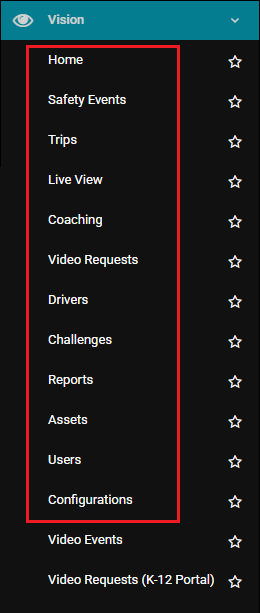
Note: Just the menu options in the red square here are the Vision Portal. The final two are the standard CalAmp K-12 Vision screens. (See Viewing Available Videos and Video Requests for details about these.)
The Vision Portal pages are as follows:
- Home: Shows an overview of your Vision data.
- Safety Events: Displays all the safety violation event videos for the selected time range.
- Trips: Lists all the fleet trips reported by your Vision cameras during the selected time range and enables you to launch the Trip Details window, which shows the path the bus took on a map and a table of all the trip violations.
- Live View: Enables you to live stream Vision camera feeds, watching what they are currently recording in real time.
- Coaching: Shows which drivers have been recommended for coaching due to safety violations and when they completed their training, plus enables coaches to launch coaching sessions.
- Video Requests: Displays previously requested videos and enables you to submit a request for a new video.
- Drivers: Lists the drivers and installers you have added via the portal and enables you to add new Vision drivers/installers.
- Challenges: Shows challenges your drivers have made to safety violation videos via the driver mobile app (if you have enabled the Challenges feature and are using the app).
- Reports: Enables you to run and schedule a report, plus view exports.
- Assets: Shows all your Vision vehicles/assets, enables you to assign drivers to them in bulk, and provides diagnostics data.
- Users: Lists all your Vision Portal users and roles, plus enables you to add new ones.
Note: It currently does NOT do this. There is a known bug that is preventing the Users page from being displayed. (Instead, it shows a copy of the Home screen.) - Configurations: Enables you to configure settings for basic and advanced events, set coaching thresholds, and add tags and attributes.