
On the Vision Portal's Coaching screen, you can see which drivers have been recommended for coaching due to safety violations and track when they completed their training sessions as follows:
Note: You'll need to have drivers added to the Vision Portal to use this feature. This is completely separate from Time and Attendance (TAA). You DO NOT need to have drivers entered into the Vision Portal to use TAA.
- Click
 >> Coaching.
The Coaching screen will appear.
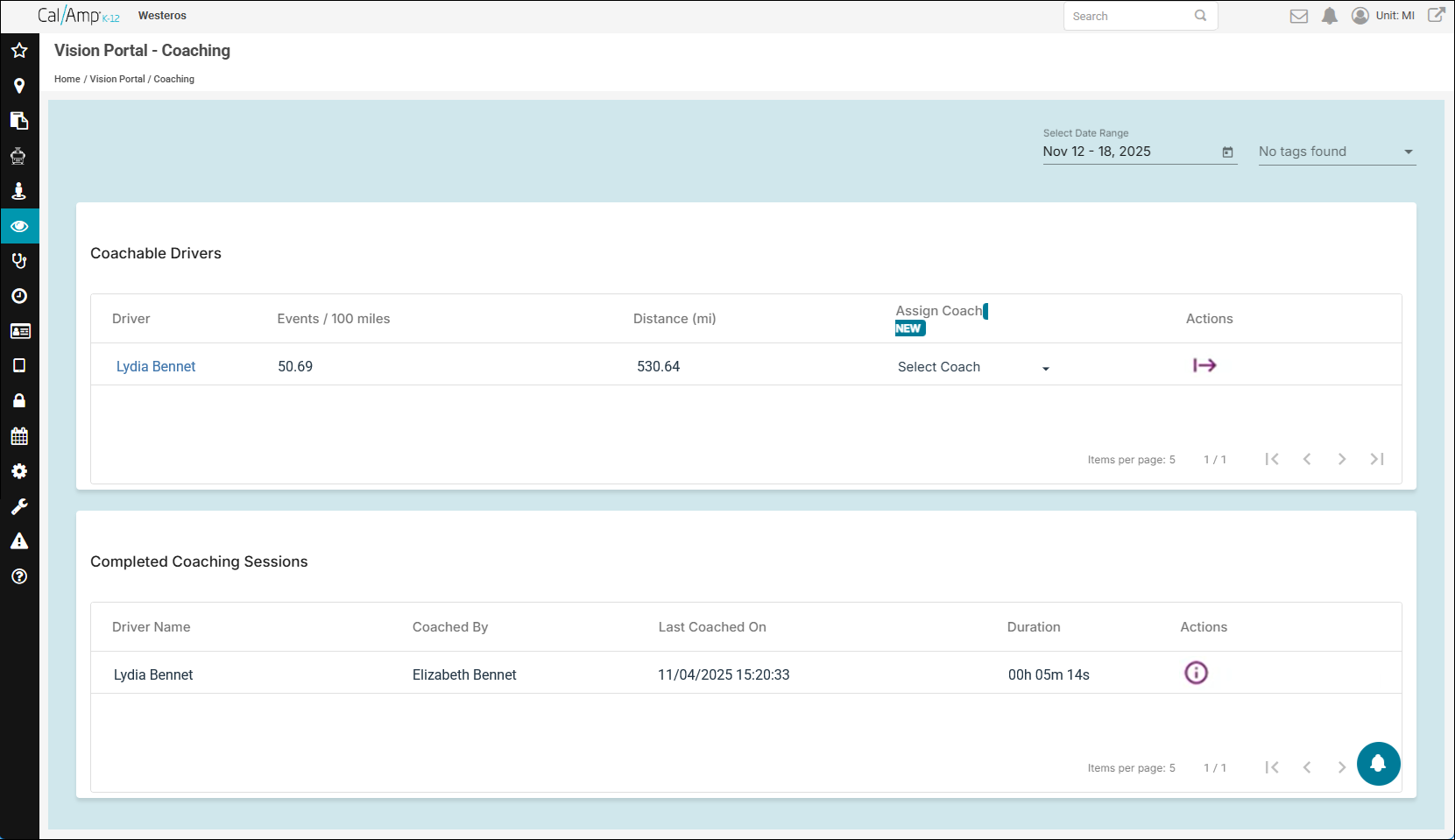
- You can see all the drivers that were recommended for coaching in the Coachable Drivers grid.
The Events/100 Miles column shows the average count of violation events the driver incurred per each 100-mile segment they drove.
The Distance (Mi) column displays the distance they drove during the selected time range (by default, the last seven days, including the current day).
- If a driver doesn't have a coach designated for them, you can assign one by clicking the Select Coach drop-down arrow in their row and selecting the trainer from the list.
- In the Completed Coaching Sessions grid, you can see which drivers finished coaching, when they last had a session, and how long that session took.
HOW DO COACHING SESSIONS WORK?
This depends on how your school district wants to use the Coaching feature, of course, but generally, coaches and drivers review the videos/events that required the driver to attend the session. The coach can launch the Coaching Session window by clicking the driver's name in the Coachable Drivers grid. This will show the driver's details and the videos in question, so the coach can provide feedback about how the road situation should have been handled. The coach can add notes about the training in the window as well. After the coach clicks Complete Coaching, the session will be marked as completed.