
On the Vision Portal's Live View screen, you can live stream Vision camera feeds, watching what they are currently recording in real time as follows:
Note: Depending on your network connectivity, strength, and bandwidth, you may find that there is a slight delay between what is happening now in the bus and the streamed video. This delay is minimal, usually 5 to 20 seconds.
- Click
 >> Live View.
The Live View screen will appear.

Note: You'll have best results with assets that have an Active status, which is indicated by a green directional marker; here's what all three types of markers mean: : Active
 : Weak Signal
 : Parked
You can click the Filter Assets icon ( ) on the right and deselect Parked Assets and Dormant Assets to leave only Active ones left in the list.
- To find a particular vehicle, you can enter its name in the Asset ID/Name field and then select the name from the drop-down list.
Note: To search by tag instead, first click the Asset drop-down arrow and select Tags from the menu. - Click
 in the asset's row to view its live stream.
The Live Streaming window will be displayed, and you will see what the Vision camera is recording at the current time.
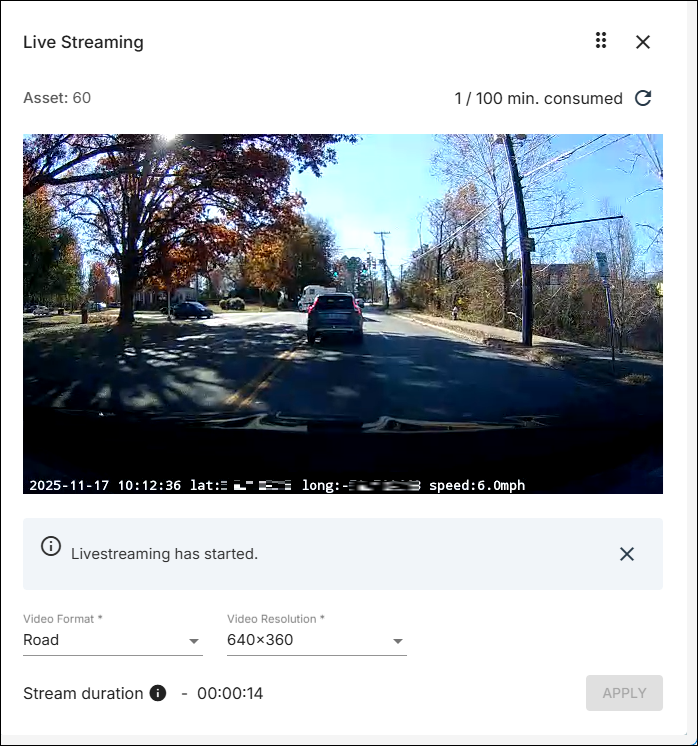
- You can change the view by clicking the Video Format drop-down arrow and selecting the one you want (such as Road + Driver to see both the forward and interior camera captures).
- You can click the Video Resolution drop-down arrow and select a different resolution.
Caution: Higher resolutions will be larger and require more bandwidth. - If you performed step 4 or 5, click Apply.
- When you are done watching the live stream, you can click
 at the top right to close the window.
Note: You might need to close the "Livestreaming has started" message first.
ARE THERE LIMITS TO HOW MUCH I CAN LIVE STREAM?
Yes, there is a limit on how much time you can live stream — 100 minutes per device per month. (This is contract-dependent, however. Your school district may have arranged for longer times.) At the top right of the Live Streaming window, you'll see text that tells you how many minutes have been live streamed this month for the camera device you are watching. For example, if the message is "5/100 min.consumed," you have used up 5 of the allotted 100 minutes for the current month.