
On the Vision Portal's Reports screen (located at  >> Reports), you can run a report, schedule a report, and view files you previously exported. The following are the report categories; you'll find these on the Overview tab:
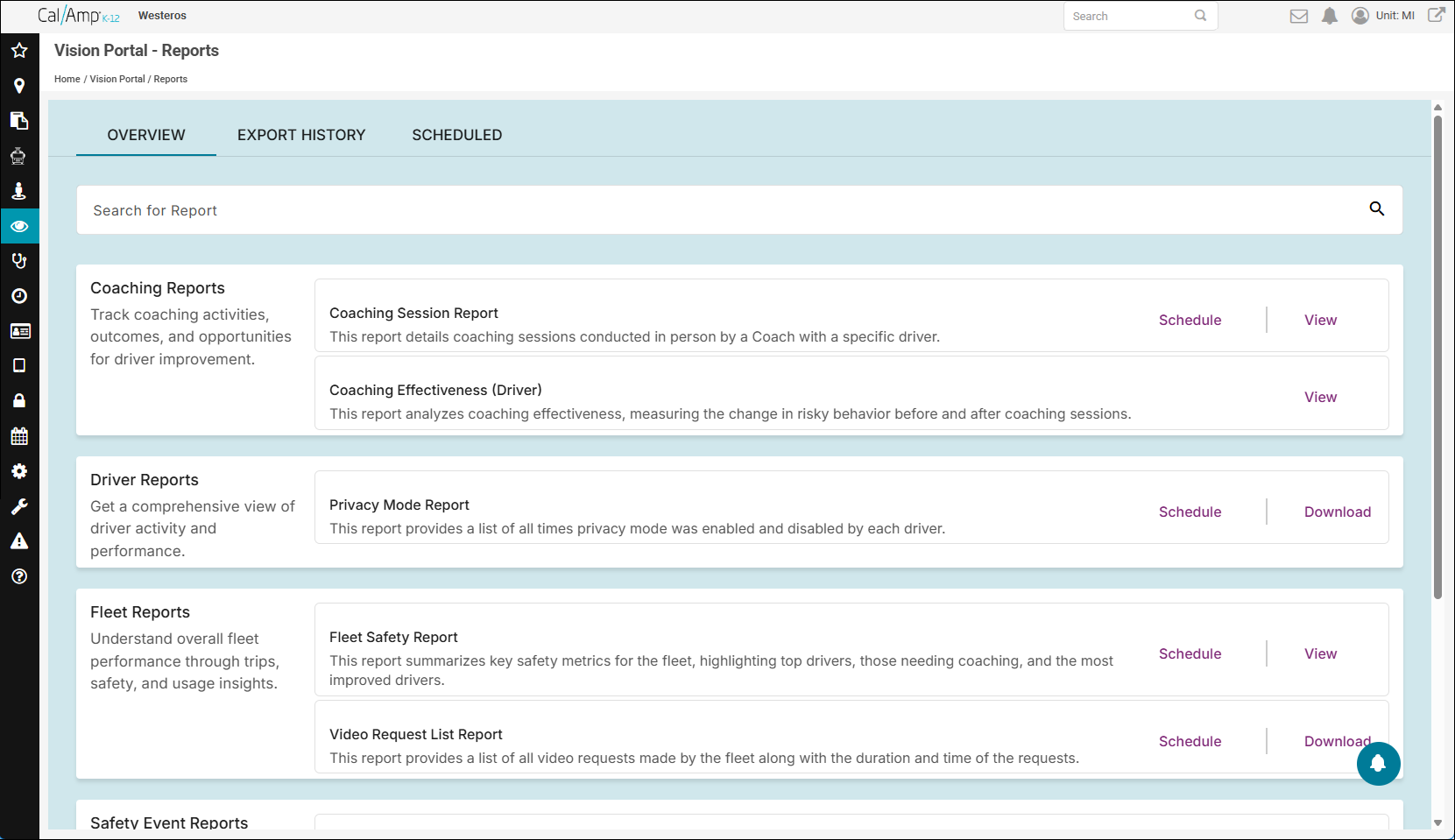
- Coaching: Shows when coaching sessions took place and analyzes whether they have been effective (determined by whether driver behavior improves after the training).
- Driver: Lists driver activities such as when they enabled Privacy mode (which turns off the cameras).
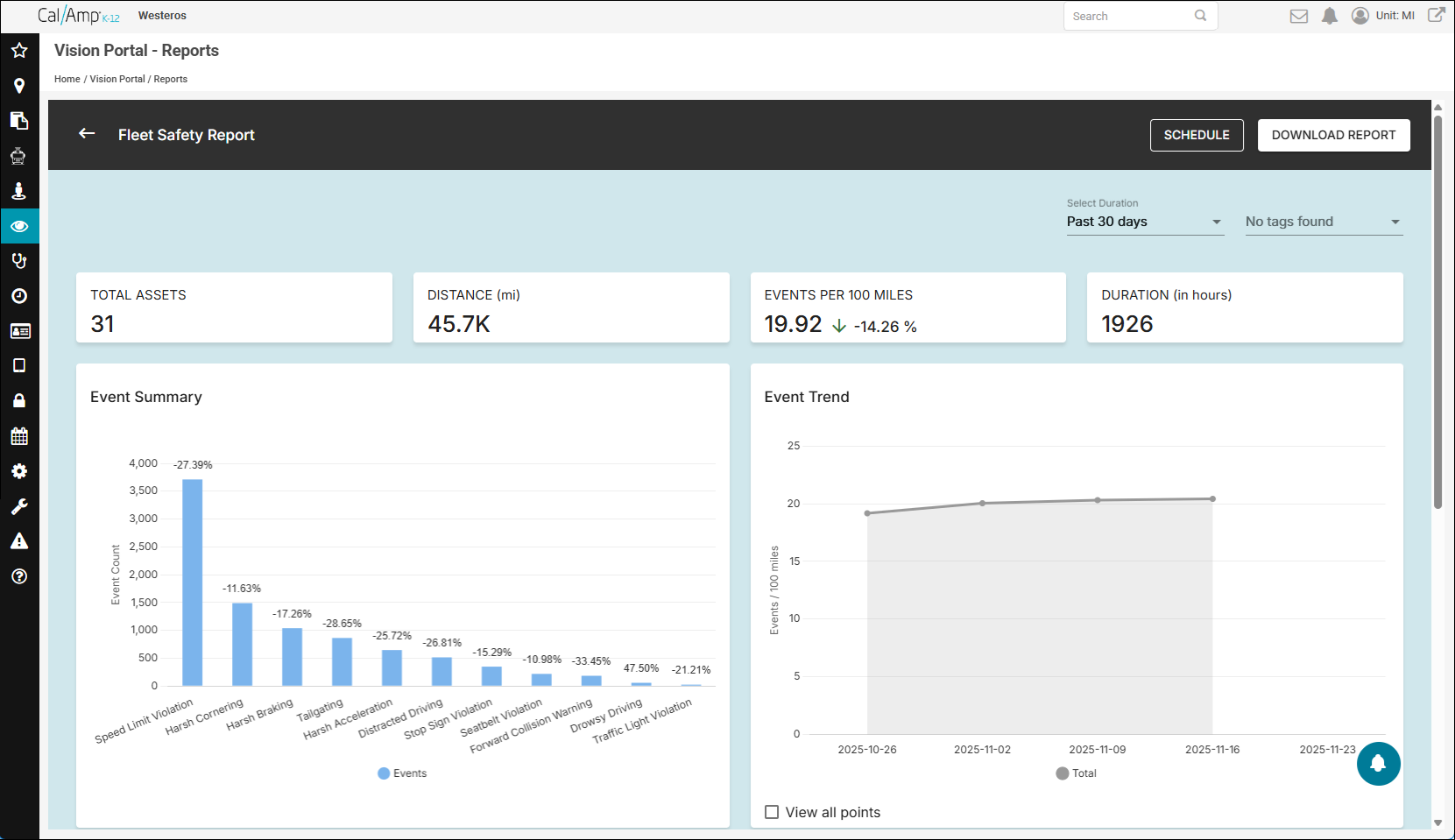
- Fleet: Presents a chart with safety event counts, a trend graph of violation numbers per 100 miles from week to week, and tables of driver data (such as top drivers). In addition, the Video Request List report shows all the video requests made for the chosen time frame.
- Safety Event: Provides lists of how many events of each type occurred, of all the events, of all the High-G events, and of all the Panic Button presses.
Running a Report
For some of the reports, you can view the results right on the page. Other reports require you to download the results. Skip down to the second numbered list to see the first type of these. To download a report, follow these steps:
- On the portal Report's screen, click the Overview tab.
- At the far right of the report's row, click Download.
The Download dialog box will appear.
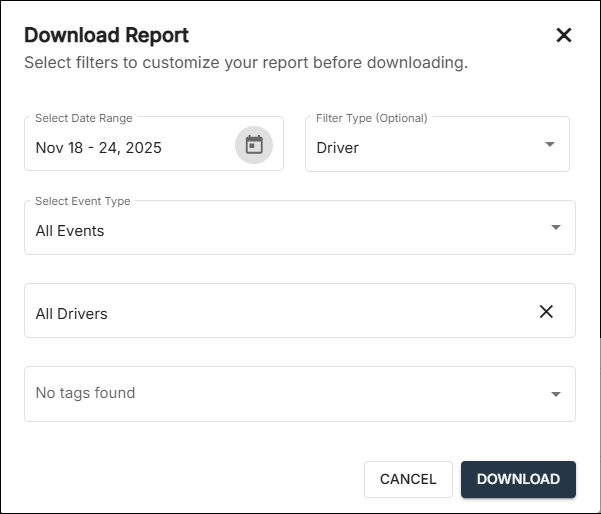
The options in this will vary, depending on which report you chose.
- To change the time range, click the Select Date Range calendar picker and select the new dates.
- Optionally, you can return results for only one driver or vehicle by click the Filter Type drop-down arrow, choosing Driver or Asset, typing the name in the All Drivers or Asset ID/Name field, and then selecting the driver or asset from the list.
- If there is a Select Event Type field, also optionally, you can click its drop-down arrow and choose just one type of events (such as Speed Limit Violation).
- You can specify tags to limit your results as needed.
- Click Download.
A message will be displayed, informing you that the download is being processed.
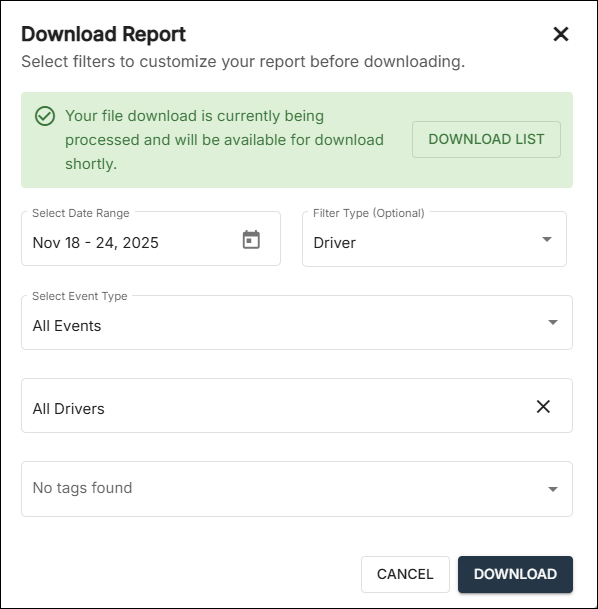
When the CSV (comma-separated value) file is ready, the portal will send you an email with a link to download it.
- Click Download File in the email to download the report to your computer.
Note: Alternatively, you can click Download List in the portal dialog box at this point, which will take you to the Export History tab. You can then click in the report's row to pull down the results.
 - Open the CSV file to see your report.
You can run one of the View report types as follows:
- On the portal Report's screen, click the Overview tab.
- At the far right of the report's row, click View.
For the Coaching reports, these options will appear:
Note: For the Fleet Safety report, skip down to step 4.
- Specify the driver and session.
The results will be displayed in the window.
The Fleet Safety report will be displayed like a dashboard as soon as you click View.
- Optionally, you can change the time period for the results or limit them to just certain tags at the top right.
Scheduling a Report
You can set up a report to run on a timetable you specify as follows:
- On the portal Report's screen, click the Overview tab.
- Click Schedule in the row of the report you want to schedule.
The parameters available for the report you chose will be displayed. These will vary from report to report. The following are the options for the Video Request List report:
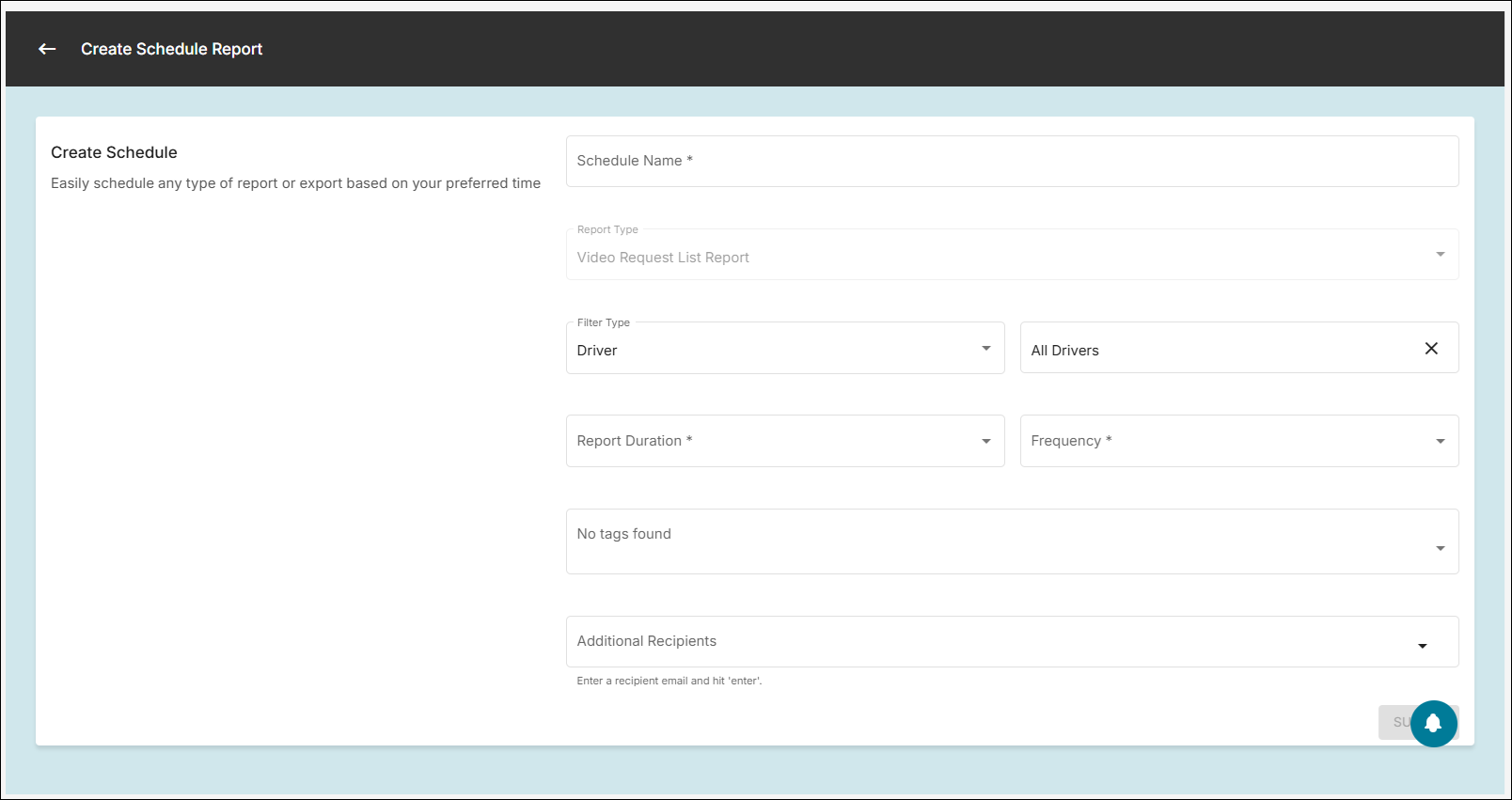
- In the Schedule Name field, type a name that will differentiate the report from other scheduled ones, such as "Video Request List - Every Monday for the Past Week."
- Fill in the parameters for the report.
In this example, the Filter Type field is optional. It enables you to specify certain buses or operators. If you leave it as its default setting, the report will be run for all drivers and vehicles.
- Click the Report Duration drop-down arrow and select the time range you want to return data for: Past 3 Days, Past 7 Days, Past 14 Days, or Past 30 Days.
- Click the Frequency drop-down arrow and select how often you want the report to run — Daily, Weekly, or Monthly, with these follow-up choices:
- For Daily: Select the hour of day, given 24-hour time segments, such as 17:30 for 5:30 p.m.
- For Weekly: Specify the day of the week and time of day.
- For Monthly: Choose the numerical day of the month, First Day of the Month, or Last Day of the Month; then select the hour of the day.
- For Daily: Select the hour of day, given 24-hour time segments, such as 17:30 for 5:30 p.m.
- Optionally, you can select tags to filter for.
- Also optionally, you can add other recipients to receive the emailed report link by typing each email address and pressing Enter in the Additional Recipients field.
You will automatically be the primary recipient even though you aren't listed.
- Click Submit.
Note: The first time you schedule a report, the Consent Required dialog box will appear after you submit it. Click Accept in this.
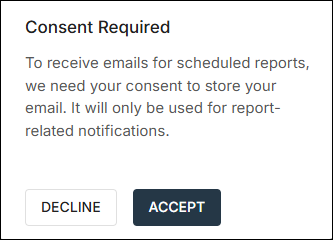
You won't have to do this when setting up subsequent schedules.
The Scheduled tab of the Reports screen will open and show your newly added report.
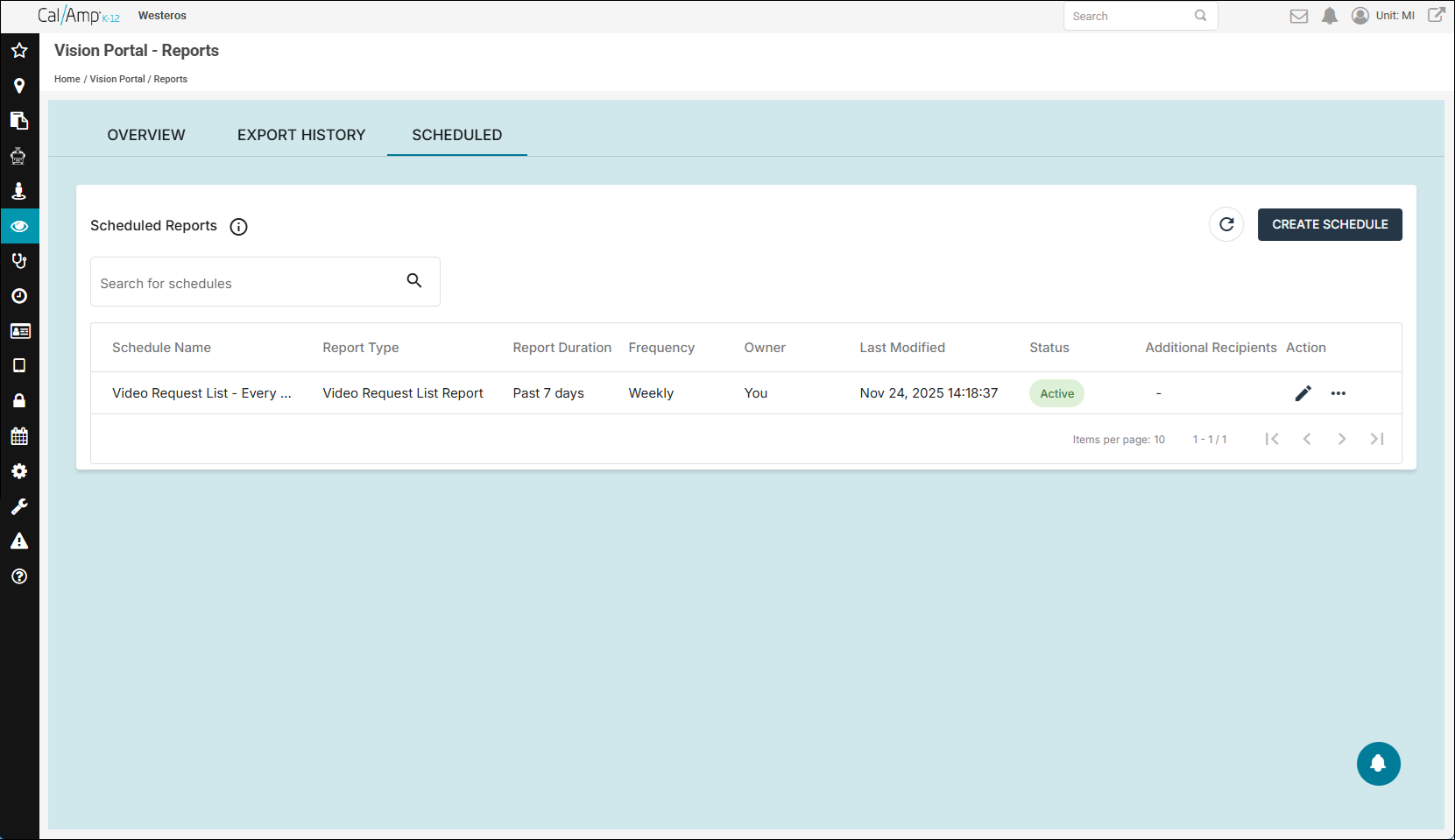
Note: You can view your scheduled reports at any time by clicking >> Reports and selecting the Scheduled tab. The options on the right in a row enable you edit, copy, pause, and delete the schedule.
Viewing Exports
To view any exports from any Vision Portal screen, plus previously run reports, follow these steps:
- Click >> Reports if you aren't already on the portal Reports screen.
- If needed, click the Export History tab.
A list of all the screen exports and run reports will be displayed.
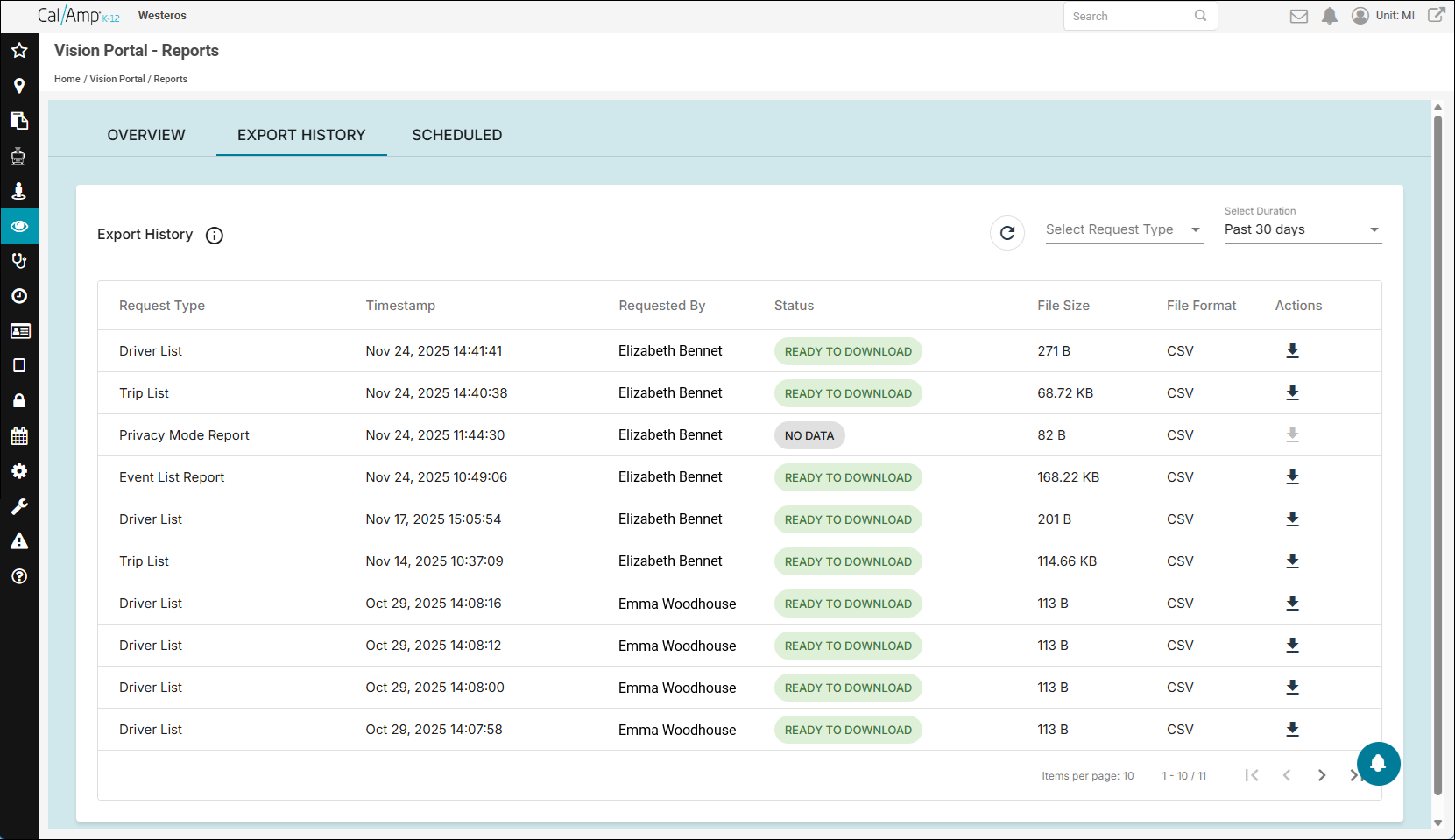
- You can view only certain reports or screen exports by clicking the Select Request Type drop-down arrow at the top right and selecting what you need on the list.
- To change the time range of the results, click the Select Duration drop-down arrow at the top right and select one of these options: Past 30 Days, Past 60 Days, Past 90 Days, or Past 180 Days.
- You can click
 to refresh the grid data.
- To download an export, click at the far right of its row.