
On the Vision Portal's Assets screen, you can see all your vehicles with Vision devices, make changes in bulk such as adding assigned drivers, and view any available diagnostics data.
Viewing Your Vision Assets
You can find a list of all your Vision assets as follows:
- Click
 >> Assets.
- If it's not already selected, click the Overview tab.
A list of all your Vision vehicles will be displayed.
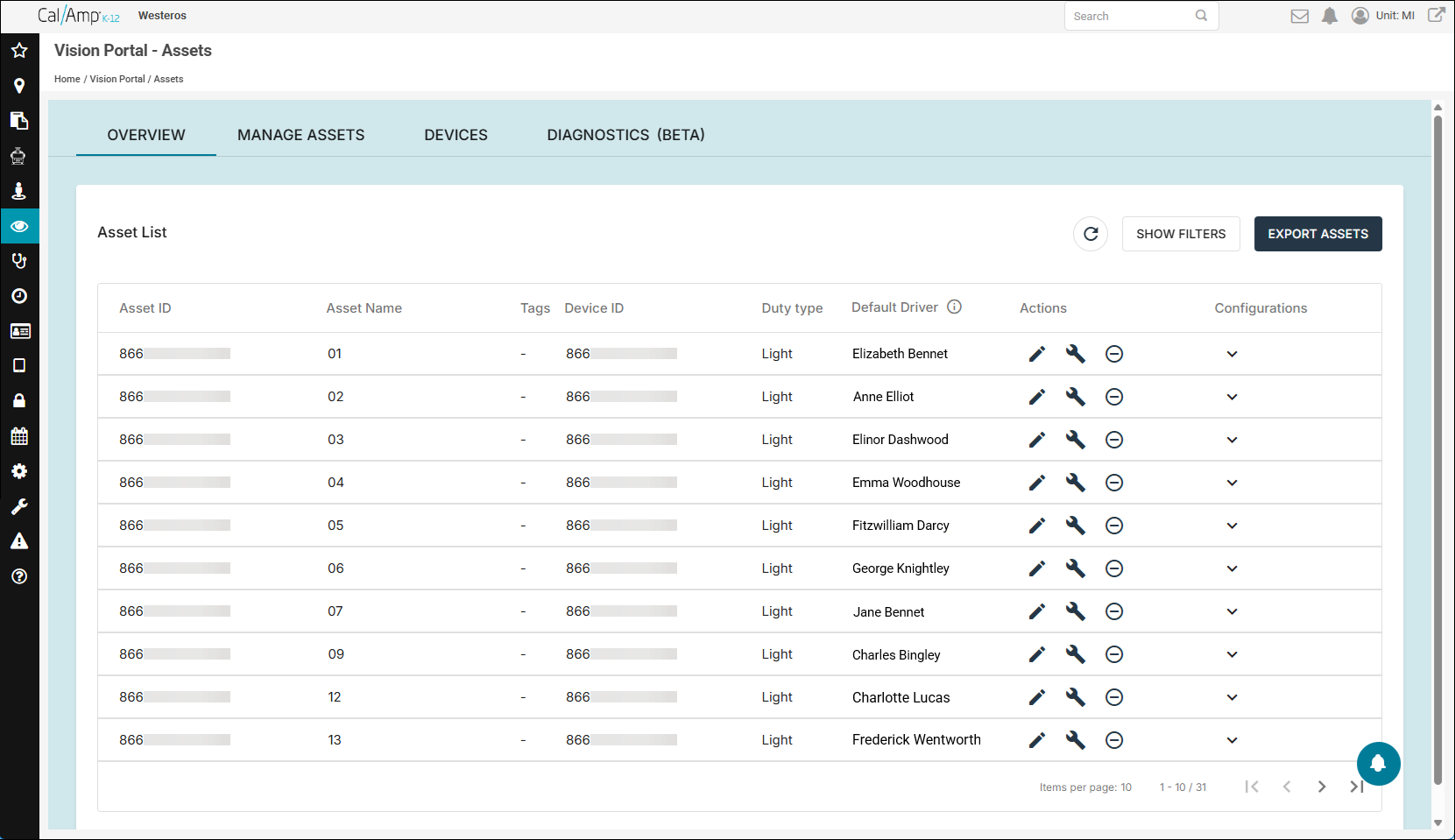
Here are descriptions of the column headings:
- Asset ID: The identifier provided for the asset/vehicle during provisioning.
- Asset Name: The name of the vehicle. For buses, this is often a number.
- Tags: Any tags that have been associated with the vehicle.
- Device ID: The IMEI (international mobile equipment identity) number for the camera device.
- Duty Type: The vehicle type, which is usually based on the weight of the load it can carry, such as Light or Heavy.
- Default Driver: The name of the driver who is assigned to the bus.
- Actions: Various activities you can perform for your vehicles, given these icons:
 Edit Asset: Enables you to change the vehicle's duty type, name, and assigned driver, plus add tags.
 Manage Device: If your school district has set up the required permissions, you can use this to format the camera's SD card, reboot the device, or stop its recording.
 Semiprovision Asset: For an active device, this will remove it from its current assignment.
- Configurations: Enables you to change the settings for the device, such as its language, volume, which events cause audio alerts in the vehicle, and whether it records audio when videos are captured.
- Asset ID: The identifier provided for the asset/vehicle during provisioning.
- You can click Show Filters at the top right to add fields that enable you to filter the shown assets by name, device ID, or tag.
- You can click Export Assets to export the list of vehicles to a CSV (comma-separated value) file. (The portal will email you a link to download the file. You also can find it on the Export History tab of the Reports screen, as shown in Running and Scheduling a Vision Portal Report.)
- To refresh the data on the screen, click
 .
.
Assigning Vision Drivers to Assets in Bulk
To assign drivers to your Vision assets in bulk, follow these steps:
- Click >> Assets.
- Click the Manage Assets tab.
The following options will appear:
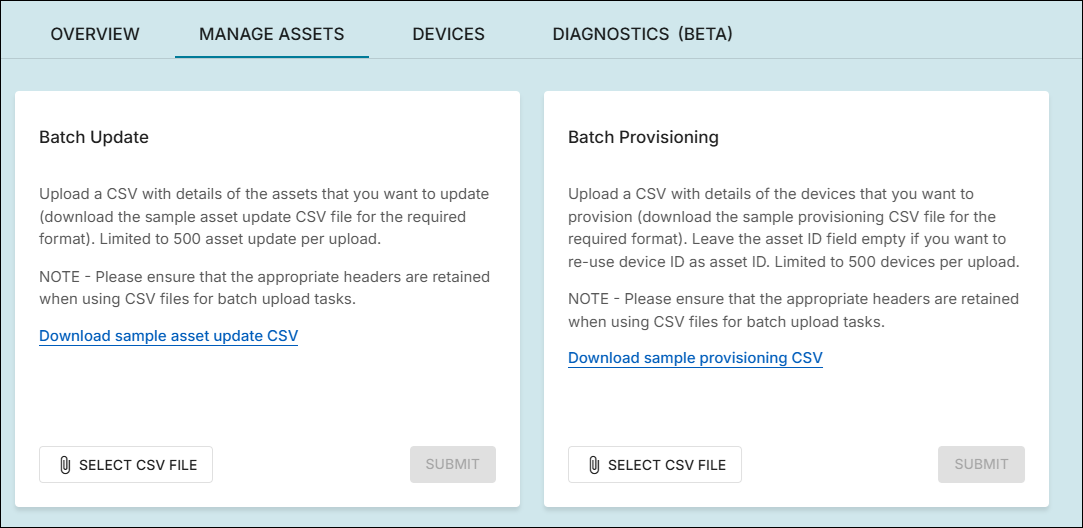
- Under Batch Update, click Download Sample Asset Update CSV.
- Open the sample_asset.csv file that was downloaded to your computer.
- Enter the vehicles' asset IDs, one bus to a row, in the Asset ID column.
Note: You'll want to delete the sample asset data by writing over it. - Optionally, you can provide the vehicle names in the Asset Name column.
- Optionally, you can enter the vehicle duty types in the Duty Type column.
- Type the drivers' IDs (such as badge numbers) in the Default Driver ID column.
- Save the CSV file with your changes.
- Back on the Vision Portal Assets screen, click Select CSV File in the Batch Update area.
- Navigate to your updated sample_asset.csv file and select it.
Its name will appear in place of Select CSV File.
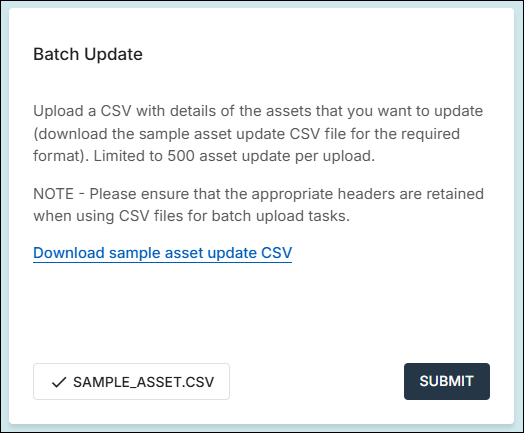
- Click Submit.
Viewing Diagnostics Data
You can view diagnostics data by clicking the Diagnostics (Beta) tab.
Note: As you might guess, this feature is in beta as of this writing, so the final version may vary from what you see below.
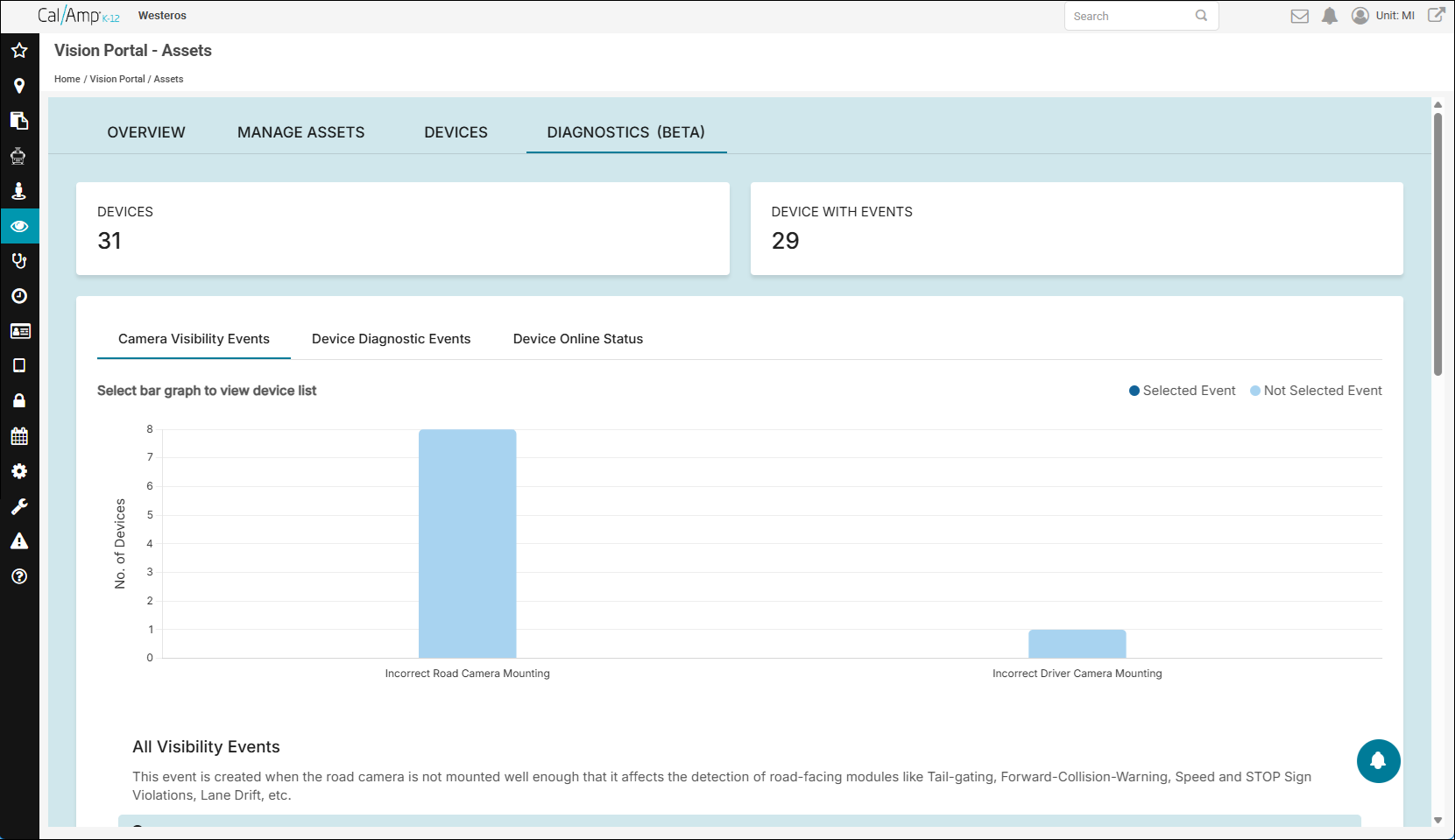
The top two tiles show the number of Vision cameras you have in your fleet and the number of devices that are currently reporting Vision events.
The third widget contains three tabs with the following data::
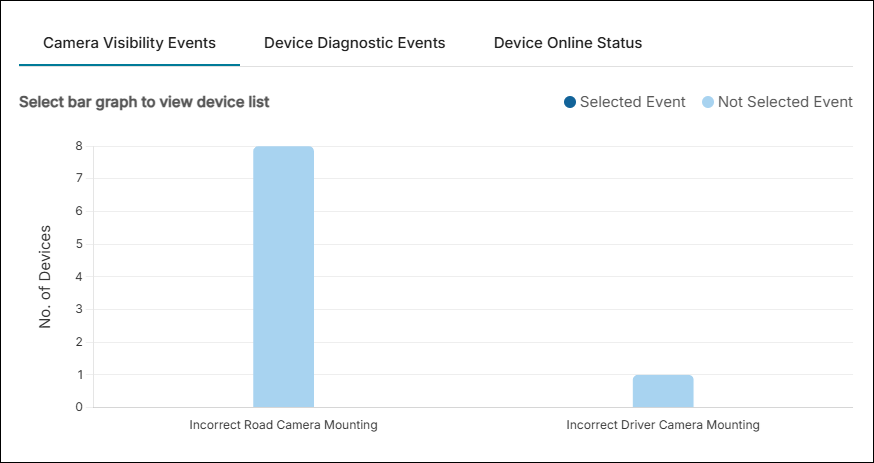
Camera Visibility Events: The bar graphs show the number of devices with incorrect camera mounting (both for the road- and driver-facing cameras), which can prevent detecting events properly. You can click a bar to see a list of which devices have the problem in the grid below.
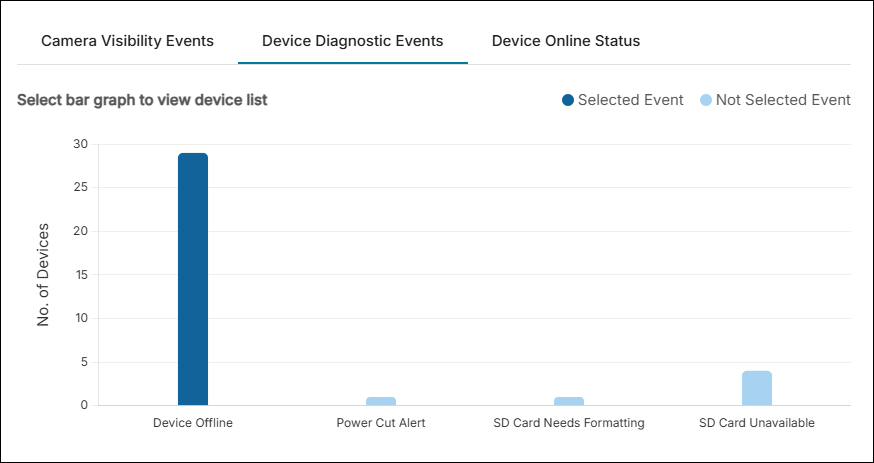
Device Diagnostic Events: The bar graphs display how many cameras are offline, have had their power cut abruptly, need to have their SD cards formatted, and don't have an SD card. Again, you can click a bar to see a list of which devices have the issue in the grid below.
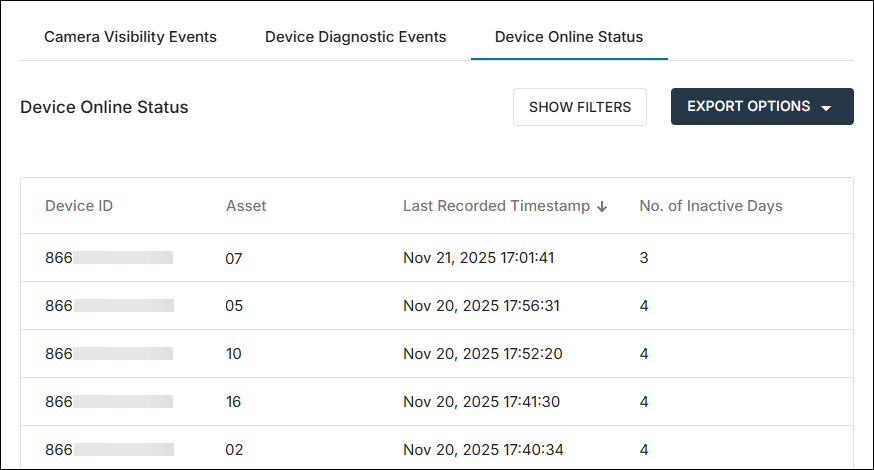
Device Online Status: This table shows which devices and assets haven't reported recently, plus the number of inactive days.
WHAT IS THE DEVICES TAB FOR?
You've probably noticed the Devices tab on the Assets screen. You won't find any devices listed. This is designed for Vision devices that have been added to your account but haven't been assigned to a vehicle. This is something that CalAmp will take care of for you.