
On the Vision Portal's Configurations screen (which you can access at  >> Configurations), you can change the configurations for the Vision events, such as how many seconds before and after a violation will be included in the video capture and the video quality, resolution, and format. You can set these by duty type (Heavy, Medium, and Light) or use the portal's default settings. In addition, the page has coaching thresholds, such as how many safety violation events the driver will incur before they will be eligible for coaching, and enables you to add tags.
Configuring Basic Event Settings
The Basic tab displays all the basic safety violations that trigger a Vision event (and a video capture, if enabled). See CalAmp Vision FAQs for frequently asked questions about the various events. You can configure the settings for each event as follows:
- Click >> Configurations.
The Basic tab will be displayed.
- At the top right, select the duty type you're configuring event settings for — Heavy, Medium, or Light.
Note: You can click Apply Defaults and click Save at the bottom of the screen to use the portal's default settings for all the basic events. - For each event you want to video, make sure that the toggle at the far right is selected. (
 means selected, and
  deselected.)
Deselect any events you don't want to record.
- Click the down arrow to the right of that toggle for the first event you want to configure.
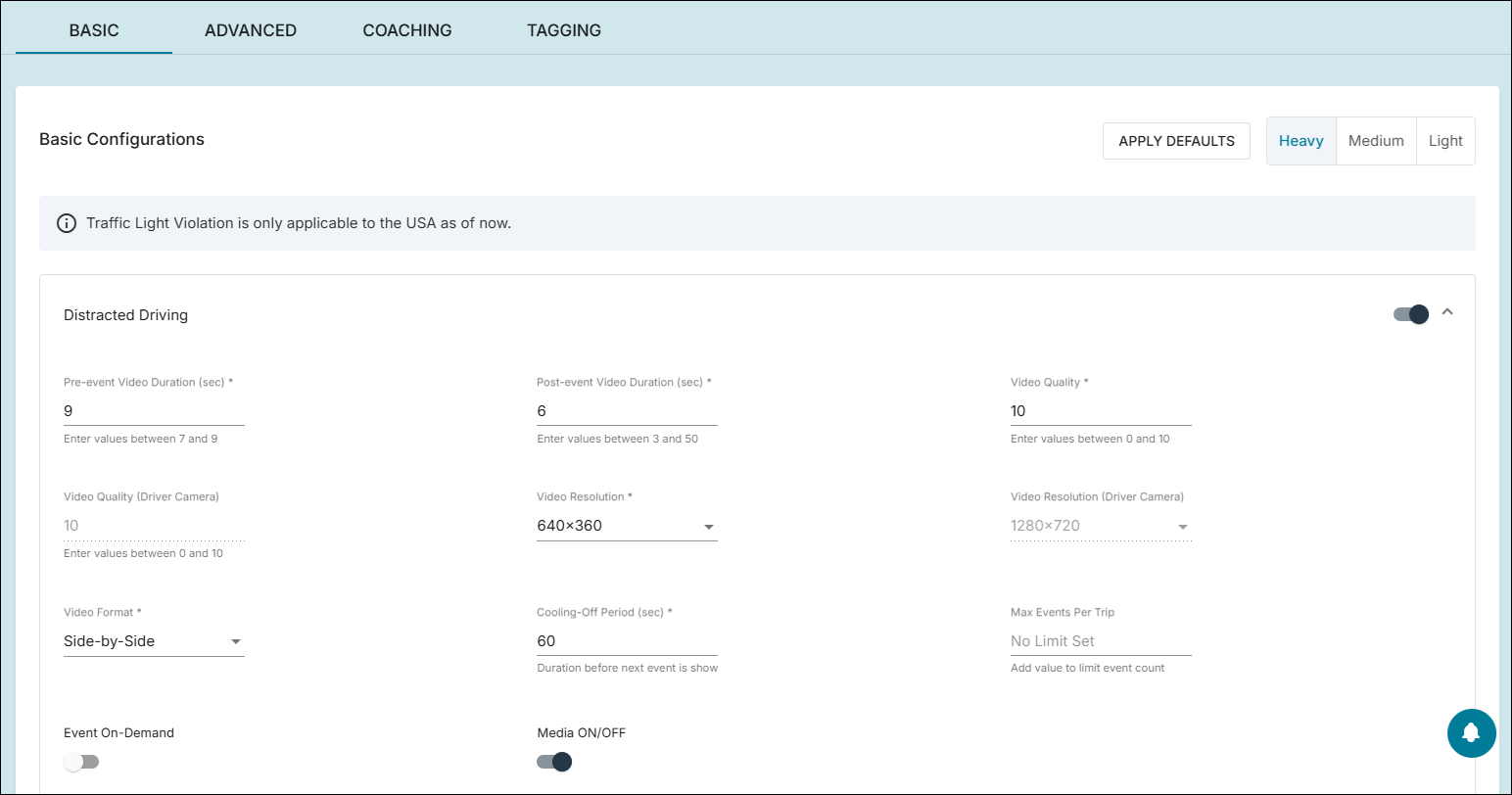
The settings vary from event to event, but these are the general ones:
- Make the changes you need for each event.
Here is a description of the primary setting choices (alphabetically):
- Cooling-Off Period: The time in seconds in between recorded events. (For example, if this is set to 60 and the driver triggers one Speed Limit violation and then another 25 seconds later, the second one won't be counted.)
- Drowsiness Min Speed: The minimum miles per hour the vehicle must be traveling for the Drowsy Driving event to be triggered.
- Duration Threshold/Enable Duration Threshold: If you toggle Enable Duration Threshold on, a Duration Threshold field will appear; the event will be triggered only if the speeding or tailgating continues for the number of entered seconds.
- Event On-Demand: If you toggle this on, higher-resolution and higher-quality videos can be requested via the portal after the fact than the configurations you entered.
- Harsh events threshold (Low/Medium/High): The sudden change in velocity that triggers the event — 4.5 mph/sec for Low, 6 mph/sec for Medium, and 8 mph/sec for High.
- Lane Departure: The maximum number of seconds that is allowed for a lane change before it becomes considered a lane drift.
- Max Events per Trip: The maximum number of events that will be recorded in a trip.
- Max Speed Limit: The maximum miles per hour the vehicle can travel, regardless of what the posted speed limit is. If the bus exceeds this value at any time, the Max Speed Exceeded event will be triggered.
- Maximum Allowed Speed: The maximum miles per hour that the vehicle has to drop below to prevent the Stop Sign violation from being registered; for example, if the bus is reported as going 3 mph through a Stop sign (and the setting is 5), the Stop Sign Violation event will not be triggered. This was set up because the GPS sensor isn't perfect in its reporting of 0 mph, so it might not always give the driver credit for a complete stop.
- Media On/Off: Whether media (video or images) can be captured for a violation. By default, this is toggled on.
- Media Type: The kind of media to record for the event (a video or an image).
- Min Eye Closure: The minimum number of seconds the driver has their eyes closed before the Drowsy Driving event is triggered.
- Min Speed: The minimum miles per hour the vehicle must be traveling before the event is triggered.
- Min Speed Enforced (Board Value): The minimum posted speed limit that will trigger a speeding event. (If a speed limit sign has a value lower that the entered value, the event will not occur.)
- Post-Event Video Duration: The number of seconds after an event that will be included in the video recording.
- Pre-Event Video Duration: How many seconds before a violation will be included in the video capture.
- Speed Over Limit (mph): How many miles per hour over the posted speed limit will trigger the event.
- TTC Threshold: The time in seconds to register a Forward Collision Warning event. For example, if the TTC (time to collision) value is 1 and the detected time a crash will occur at the current rate of velocity is less than one second, the Forward Collision Warning event will be triggered.
- Video Format: The format the video is presented in, such as Road for the road view only or Side-by-Side for the two feeds right next to each other.
- Video Quality/Video Quality (Driver Camera): The video quality for the road- and driver-facing cameras, respectively. The higher the bitrate you enter, the higher the quality (but this also means larger file sizes).
Note: You might not be able to change this for the driver camera, depending on your CalAmp K-12 account settings. - Video Resolution/Video Resolution (Driver Camera): The resolution for videos captured by the road- and driver-facing cameras, respectively, such as 640 x 360.
Note: Again, you might not be able to change this for the driver camera, depending on your CalAmp K-12 account settings.
- Cooling-Off Period: The time in seconds in between recorded events. (For example, if this is set to 60 and the driver triggers one Speed Limit violation and then another 25 seconds later, the second one won't be counted.)
- Click Save at the bottom of the screen.
- Click Medium at the top right of the page and repeat steps 3 through 6 for your medium-duty vehicles.
- Click Light at the top right of the page and repeat steps 3 through 6 for your light-duty vehicles.
Configuring Advanced Event Settings
The Advanced tab displays settings for more advanced Vision events, such as High-G (which indicates a possible collision) and Rollover Detection. To configure these settings, follow these steps:
- On the Configurations screen, click the Advanced tab.
- In the Advanced Configurations section, select the duty type you're configuring settings for — Heavy, Medium, or Light.
Note: You can click Apply Defaults and click Save (or Save for All Duty Types) at the bottom of the area to use the portal's default settings for all the advanced events. - For each event you want to video, make sure that the toggle is selected. ( means selected, and deselected.)
Deselect any events you don't want to record.
- Click the down arrow for the first setting you want to configure.
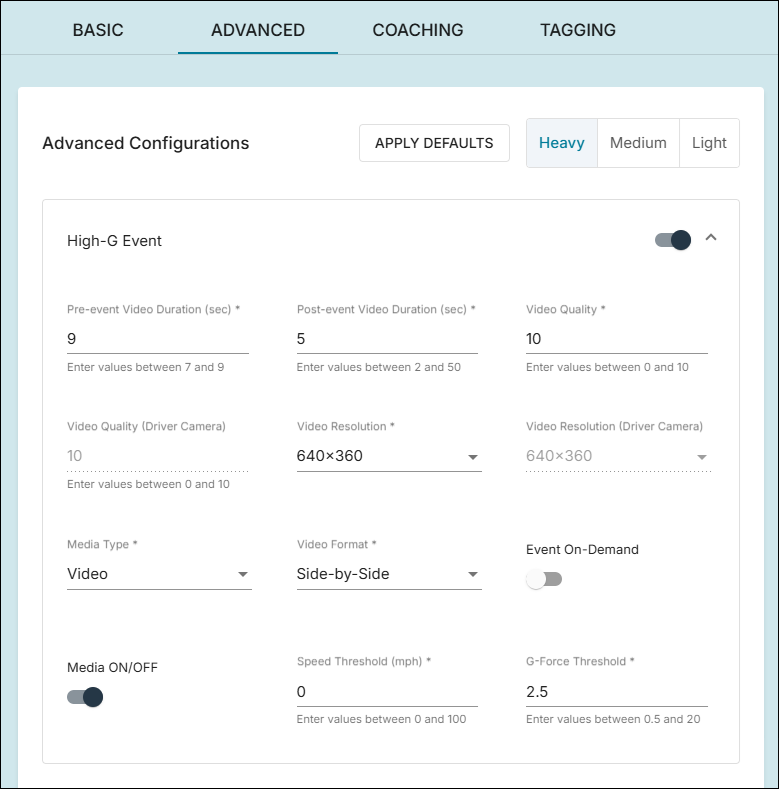
Here are the settings for the High-G event:
- Make the changes you need for each setting.
The settings vary, but the general ones are the same as on the Basic tab (see step 5 in the preceding section). The following are some additional ones you'll see (alphabetically):
- Action Mapping: What happens when the driver presses the panic button on the camera (for a single, double, and long press). By default, all of these capture video, but you can change this to take no action or to enable/disable Privacy mode (in which the cameras are turned off).
- Device: Global settings for your camera devices, as follows:
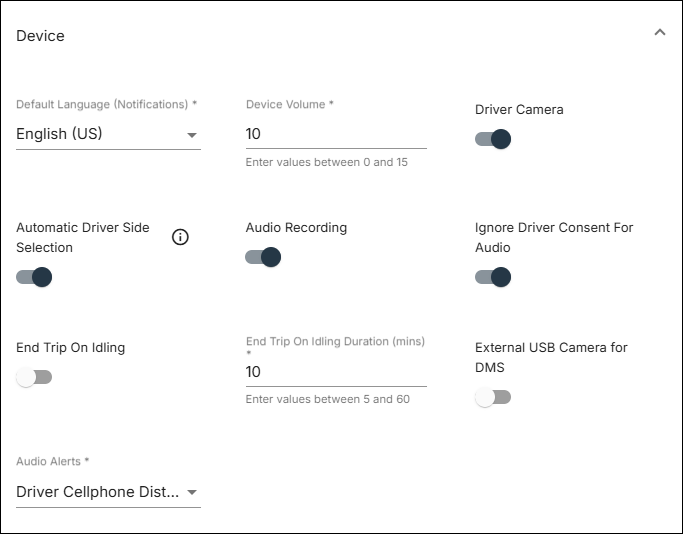
- Default Language: The language used for the spoken messages (audio alerts) from the device to the driver.
- Device Volume: The volume setting for the audio alerts.
- Driver Camera: When enabled, the driver-facing camera will be turned on.
- Automatic Driver Side Selection: When enabled, this will automatically choose the largest face on the driver's side of the bus to process as the driver's face.
- Audio Recording: If this is enabled, audio will be recorded for all captured videos.
- Ignore Driver Consent for Audio: If this is enabled, the device will not ask the driver for consent to record in-cab audio.
- End Trip on Idling: Enables automatically recording a trip as completed when idling is detected.
- End Trip on Idling Duration: The number of minutes that counts as idling to end the trip.
- External USB Camera for DMS: This should be enabled only if your school district is using external USB cameras to monitor the drivers.
- Audio Alerts: A list of different events that will prompt an audio message from the device to the driver. Check the box for each one you want to provide an audio alert for.
- Default Language: The language used for the spoken messages (audio alerts) from the device to the driver.
- G-Force Threshold: The G-force value that will trigger the possible crash (High-G) event.
- Other: Miscellaneous other settings, as follows:
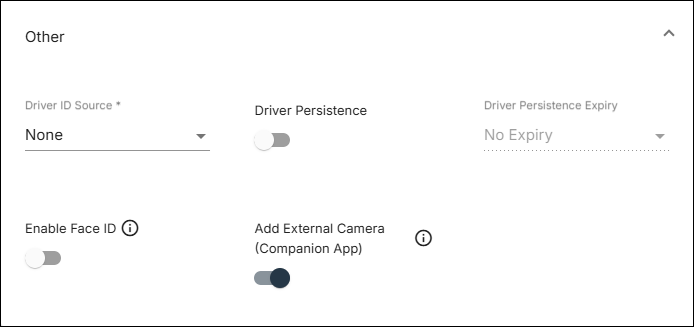
- Driver ID Source: How the driver will be assigned to the trip, such as via QR code.
- Driver Persistence/Driver Persistence Expiry: If this is enabled, the driver ID from previous trips will be assigned. You can set the persistence to never expire or to expire after a certain number of hours or days.
- Enable Face ID: Currently in beta, this will turn on using facial recognition to identify the driver.
- Add External Camera (Companion App): When enabled, this will allow installers to add an external camera via the mobile app.
- Driver ID Source: How the driver will be assigned to the trip, such as via QR code.
- Privacy Mode: If this is enabled, drivers will be able to deactivate both cameras using a button.
- Speed Threshold: The speed reduction in mph that will trigger the High-G event.
- Surveillance Mode: If enabled, this will turn on camera recording when the bus isn't in motion, for the duration you set after the ignition is turned off. This provides options to disable certain features while surveilling the driver, such as telematics data, the driver-facing camera, and the external camera (if any).
- Action Mapping: What happens when the driver presses the panic button on the camera (for a single, double, and long press). By default, all of these capture video, but you can change this to take no action or to enable/disable Privacy mode (in which the cameras are turned off).
- To save these settings for just a single duty type, click Save at the bottom of the section.
You can save the same settings for all the duty types by clicking Save for All Duty Types.
- If you want to use a different configuration for each duty type, click Medium at the top right of the Advanced Configurations area and repeat steps 3 through 6 for your medium-duty vehicles.
- Again, if you are setting different configurations for the separate duty types, click Light and repeat steps 3 through 6 for your light-duty vehicles.
WHAT ARE THE DRIVER CONFIGURATIONS?
You'll see a Driver Configurations area on the Advanced tab. This requires you to first give consent. After you do so, you can turn on audio recordings individually for each driver.
Setting Coaching Thresholds
You set the coaching thresholds as follows:
- On the Configurations screen, click the Coaching tab.
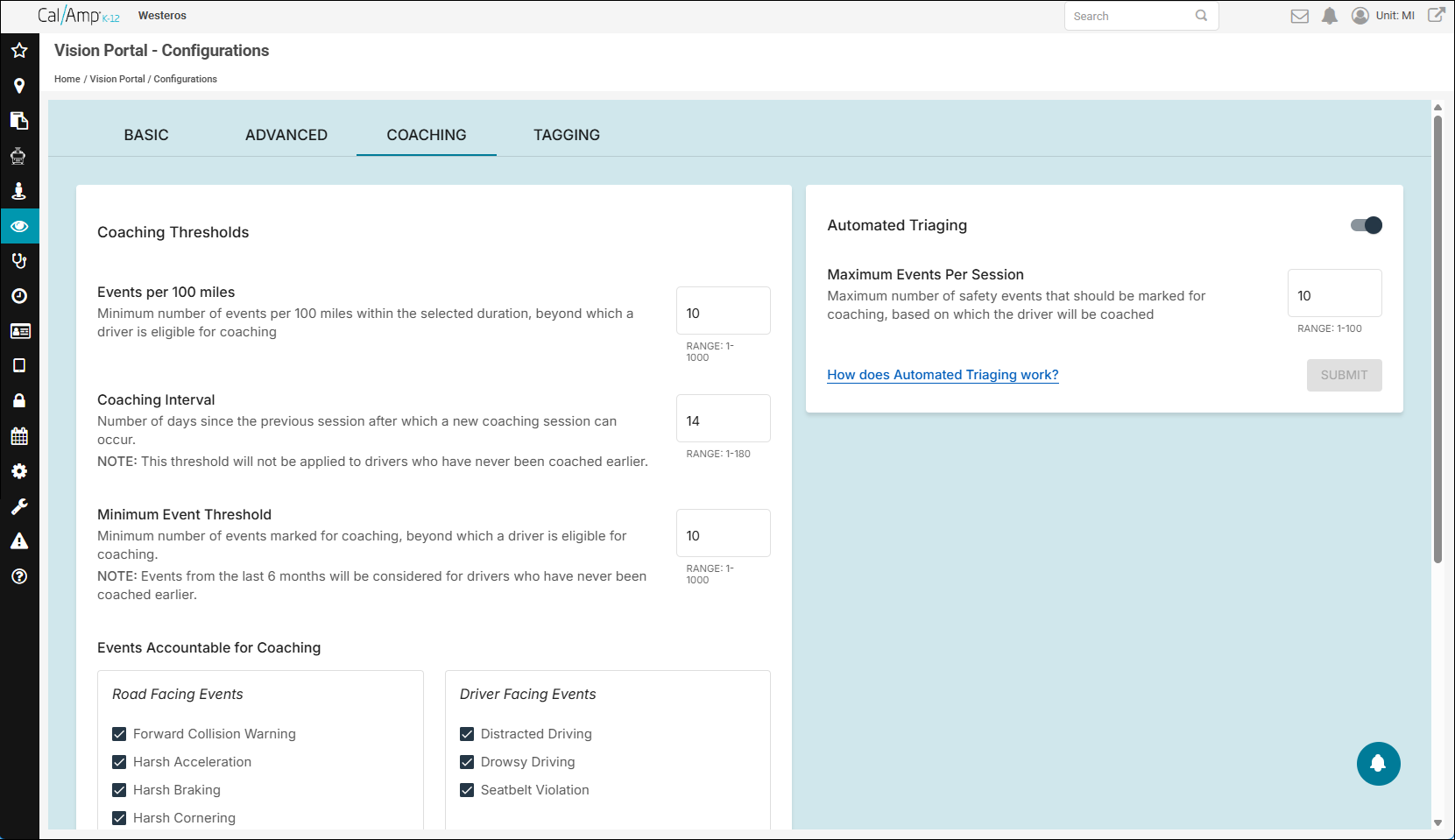
- To change one of the top three settings, select the current value in the field and type the new one; these are as follows:
- Events per 100 Miles: The minimum number of violation events per every 100 miles of driving that will make the driver eligible for coaching. (A lower number will result in the driver needing a coaching session sooner.)
- Coaching Interval: For drivers who have previously received coaching, the number of days after the last session that they can be required to attend another training.
- Minimum Event Threshold: The minimum number of safety events that will make the driver eligible for coaching. (Again, a lower value will result in the driver needing a coaching session sooner.) If the driver has never received Vision coaching, this count will go back as far as the past six months.
- Events per 100 Miles: The minimum number of violation events per every 100 miles of driving that will make the driver eligible for coaching. (A lower number will result in the driver needing a coaching session sooner.)
- Under Events Accountable for Coaching, select the check boxes for events you want to include as coachable offenses (and deselect any you don't).
- Click Submit.
WHAT IS AUTOMATED TRIAGING?
If Automated Triaging is enabled, the value in the box is set as the maximum number of events selected for coaching in a session. You won't want to review too many videos in a coaching.
Viewing and Adding Tags
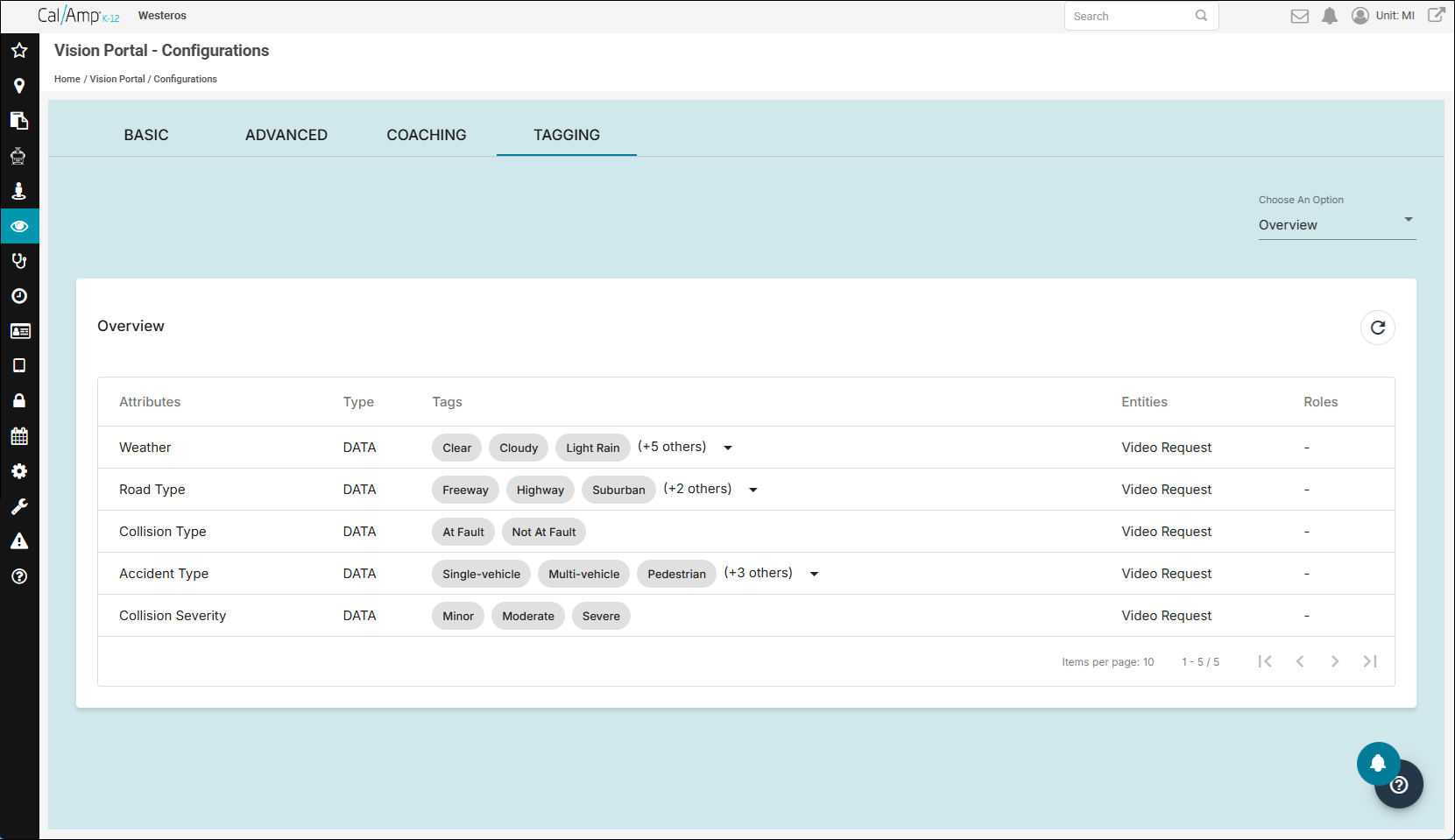
Tags are identifiers that help you describe Vision features by keyword, such as "North" for assets/drivers who run your routes in the northern part of the country. You and other users can use tags to filter information on the Vision Portal screens. You also can use tags to control access to your Vision data.
Attributes are categories/groupings of tags, such as "Location" if you have tags of North, South, and so on.
You can find your tags and attributes on the Tagging tab and add a new tag as follows:
- On the Configurations screen, click the Tagging tab.
The Overview tab will show all the attributes already available, the tags in them, and the type of entities they apply to.
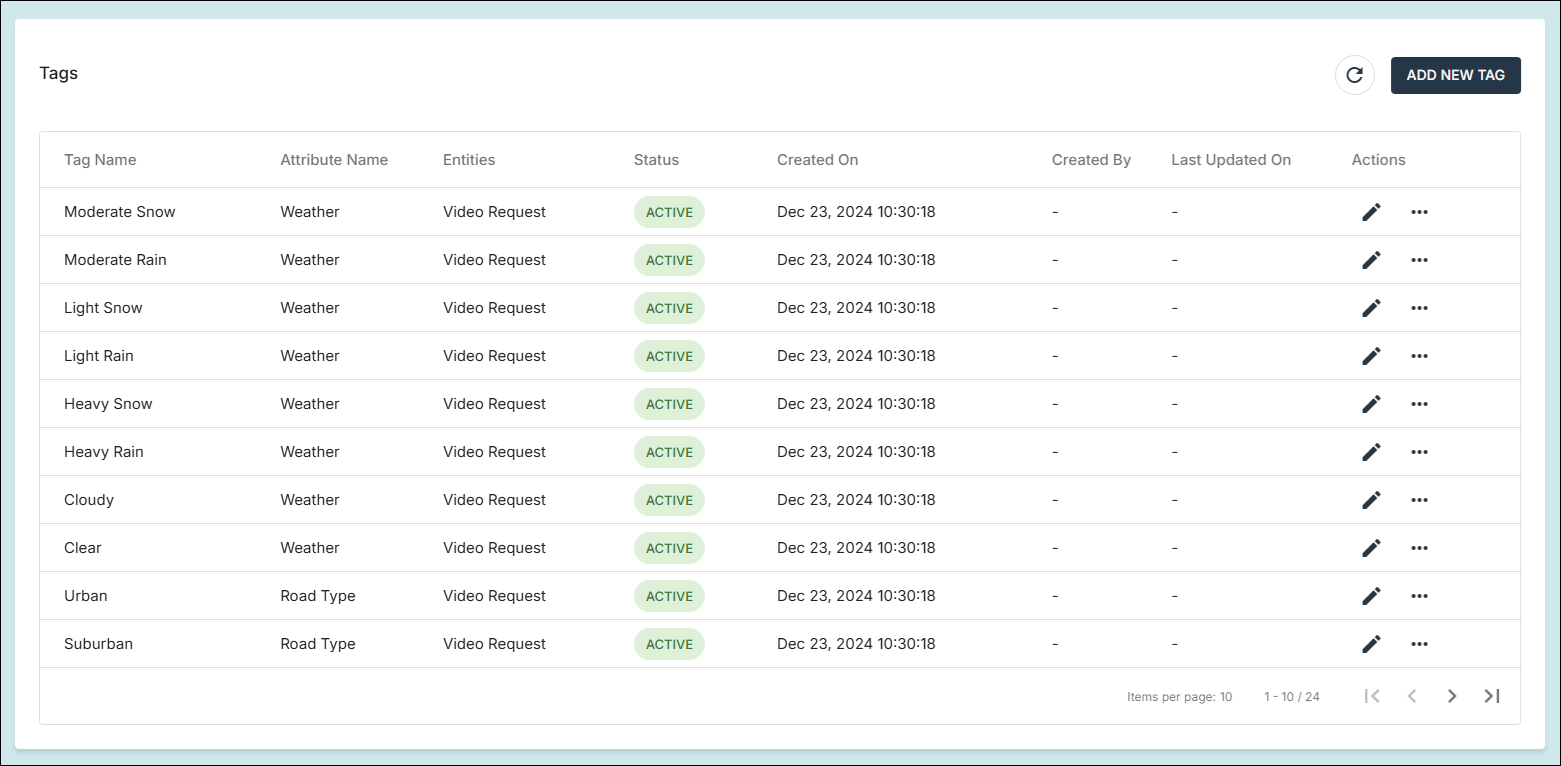
- To see your tags, click the Choose an Option drop-down arrow at the top right of the page and select Tags.
Your tags will be displayed.
- To add a new tag, follow these steps:
- Click Add New Tag at the top right.
The Tags Information fields will appear.
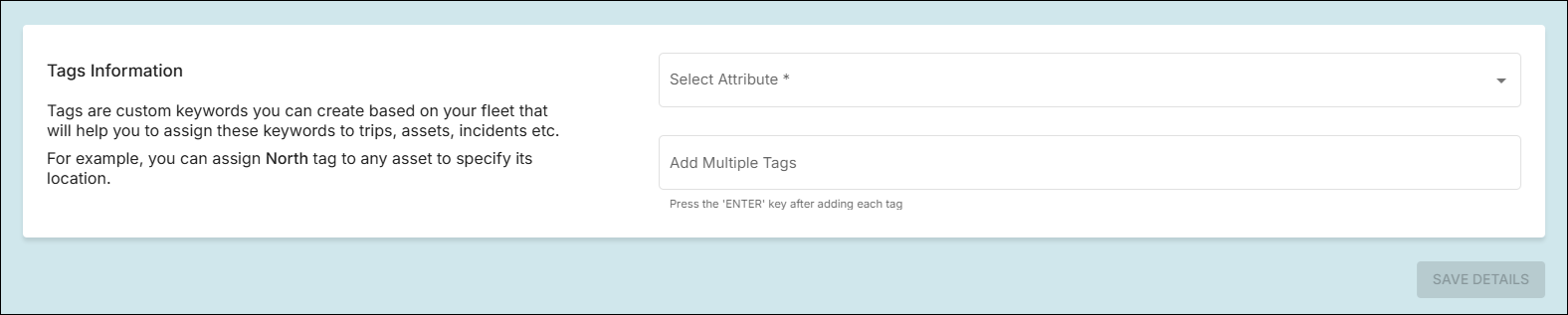
- Click the Select Attribute drop-down arrow and choose the attribute grouping that you want to place the tag in.
- Type the name of the tag in the Add Multiple Tags field and then press Enter.
- You can add more tags by repeating step c.
- Click Save Details.
- Click Add New Tag at the top right.
- You can view your attributes and add a new one as follows:
- Click the Choose an Option drop-down arrow at the top right and select Attributes.
- Click Add Attribute.
The Attribute Information fields will appear.
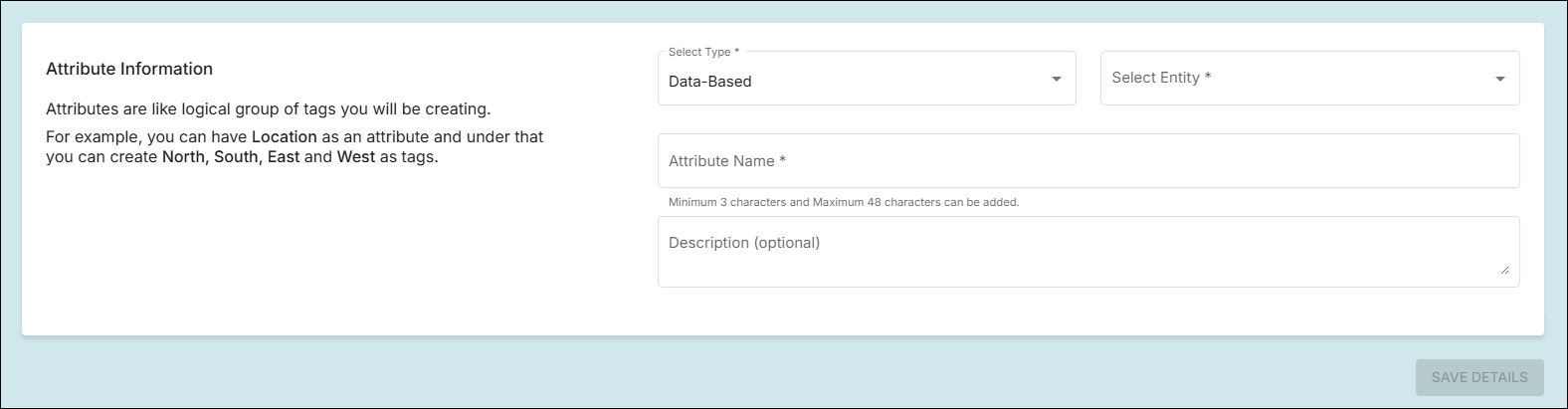
- Click the Select Type drop-down arrow and choose either Access-Based (to use the attribute to limit what users can see by role) or Data-Based (to use it to describe and filter data on Vision Portal screens).
- Click the Select Entity drop-down arrow and choose what types of items the grouping will apply to, such as Asset, Driver, and/or Video Request.
- Type the name of the attribute in the Attribute Name field.
- Optionally, you can type a description, explaining what the attribute is designed to do, in the Description field.
- Click Save Details.
- Click the Choose an Option drop-down arrow at the top right and select Attributes.