
The Safety Events screen of the Vision Portal, which you will find at  >> Safety Events, shows all the safety violation event videos for the selected time range, which by default is the last seven days (including the current day).
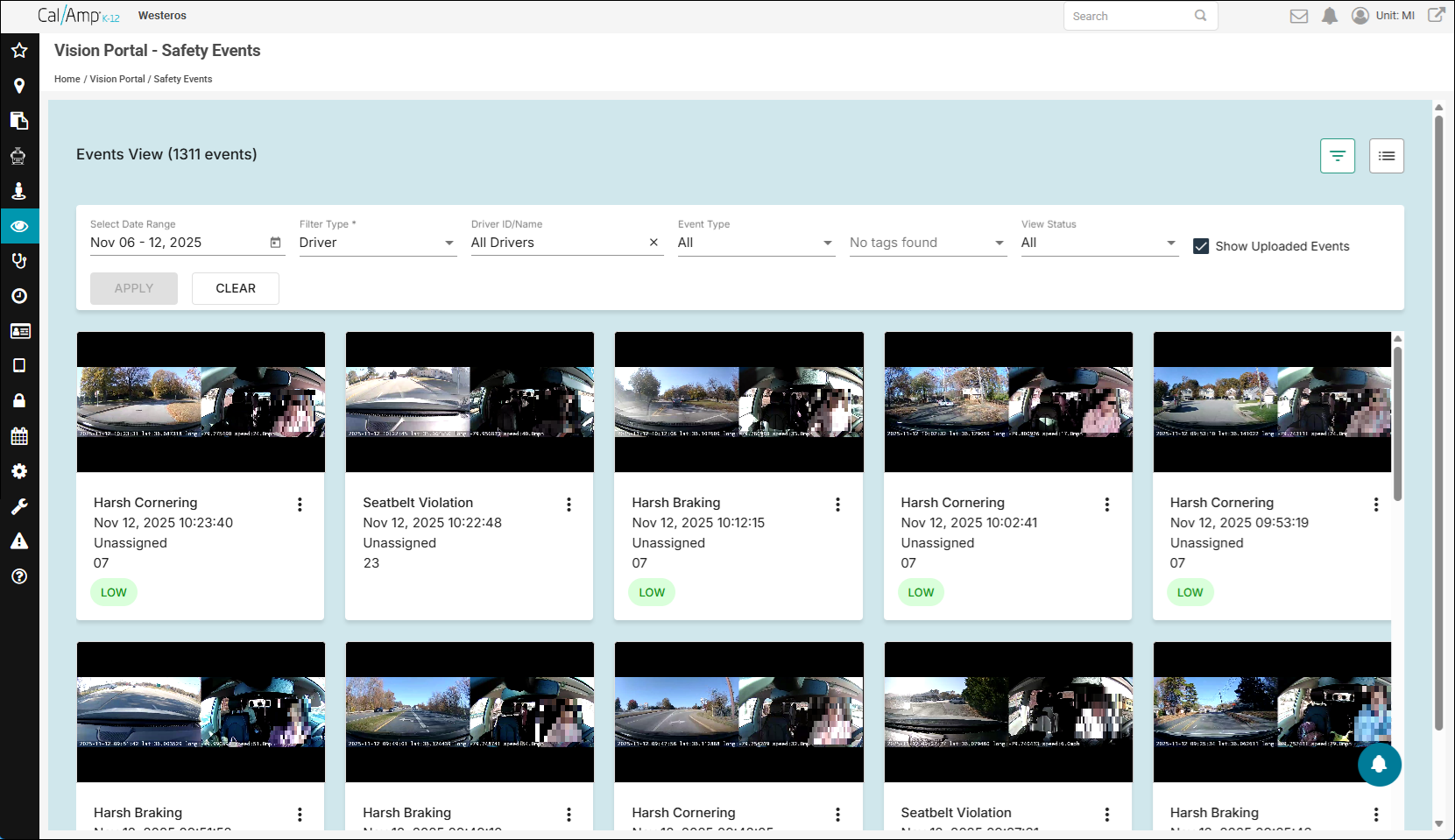
To change the time period of events, follow these steps:
- Click the Select Date Range calendar picker.
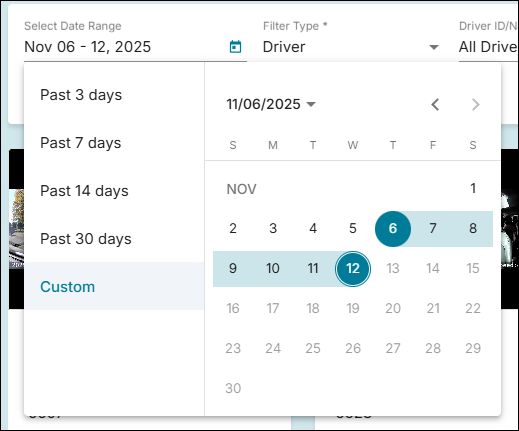
- You can select one of the common date ranges (such as Past 14 Days) by clicking it on the left.
To specify a custom range of dates, clicking the beginning and end days on the calendar. (You can use to move to the preceding month and
  to return the current month.)
- Click Apply.
You can return safety events for a certain bus or driver as follows:
- Click the Filter Type drop-down arrow and select either Driver or Asset (for a particular bus).
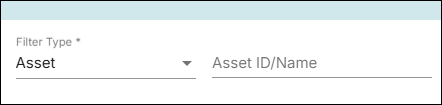
- Type the vehicle's or driver's name/number in the field to the right.
- Select the name/number in the drop-down list that appears.
- Click Apply.
You can use a similar procedure to return only certain events (such as High-G Event) using the Event Type drop-down list. You can also filter by tag or status.
Note: If you deselect Show Uploaded Events and then click Apply, all violations will be returned, including many that say "Media Not Available." Those results show that an event message was sent to CalAmp K-12, but no automatic video was uploaded to the site.
Each video has an overflow menu (accessible by clicking  ) with these options:
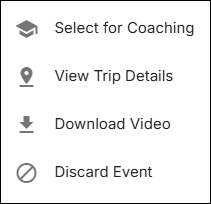
- Select for Coaching: Adds the driver to the Coachable Drivers list, which is a tool to highlight which drivers need extra training due to incurring excessive traffic violations and to log when they completed that training. (See Using the Coaching Screen for details.)
- View Trip Details: Opens the Trip Details window for the event, which shows the path the bus took on a map and a list of all the violations for the trip, plus the time they occurred. (See Viewing Trip Details.)
- Download Video: Downloads the video to your computer.
- Discard Event: Removes the event from the software.
You can click a video thumbnail to open and play it in its own window.
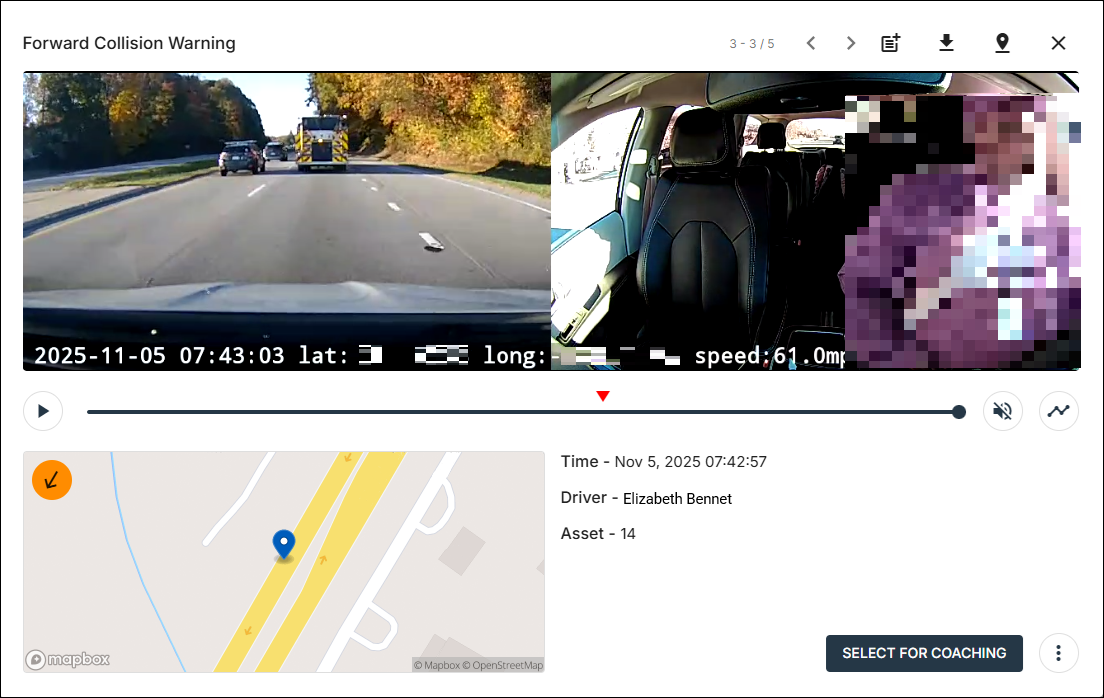
See Using the Home Screen for details about this window.