
On the Vision Portal's Vision Request screen, you can view previously requested videos and submit a request for a new video.
Note: It is actually easier to use the Trip Details window to request a video because you already are looking at the vehicle and trip you need a video for, whereas with the method below, you need to find both. Go to Viewing Trip Details for details.
Viewing Video Requests
You can view video requests as follows:
- Click
 >> Video Requests.
Note: Select the first menu option with that name. The second one (at the bottom of the menu), Video Requests (K-12 Portal), opens the CalAmp K-12 page, not the Vision Portal one. (Video Requests [K-12 Portal] has details about the K-12 screen.)
The Vision Portal Video Requests screen will appear.
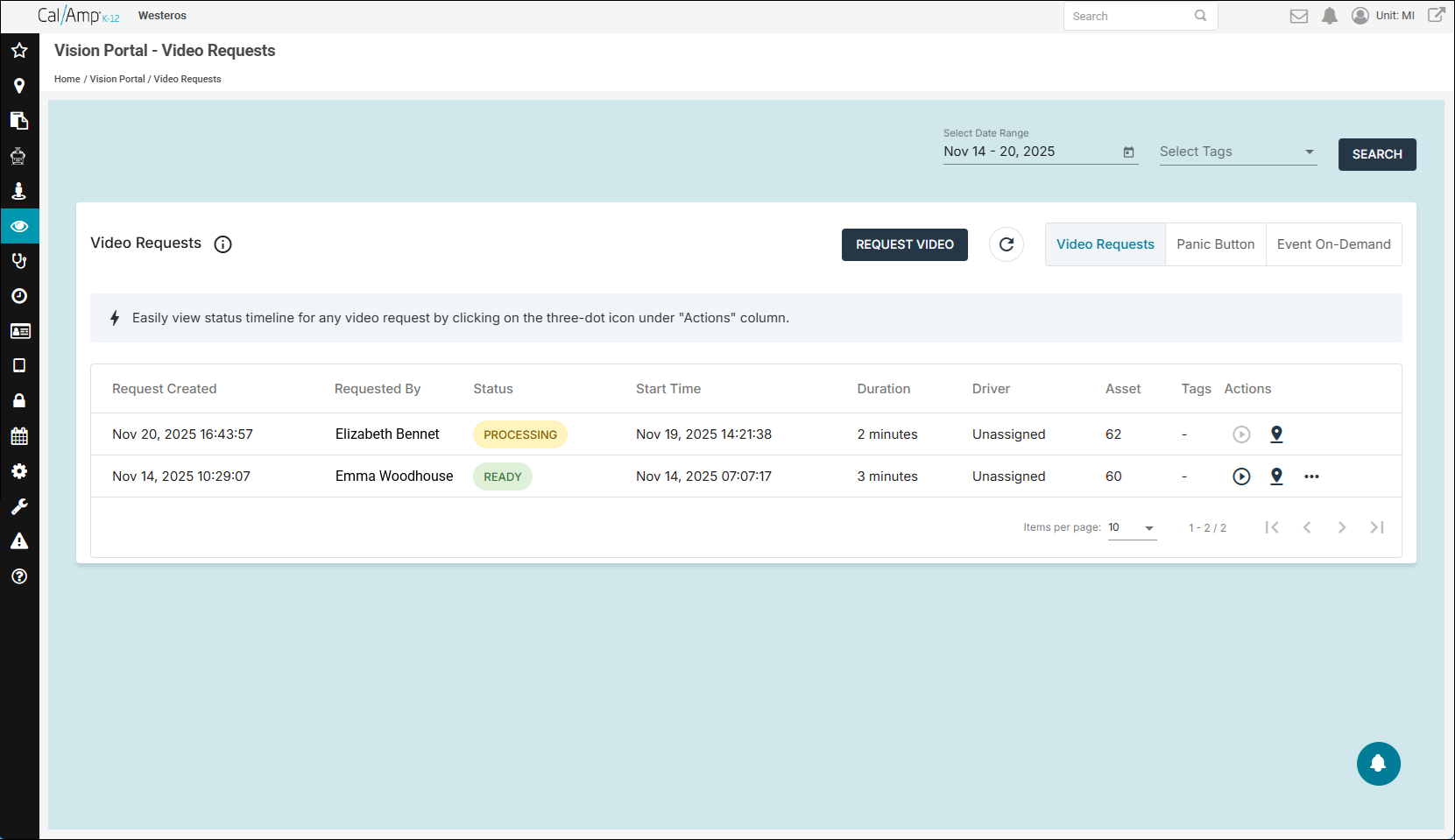
By default, requests made in the last seven days, including the current day, will be displayed.
- You can change the time period of shown requests as follows:
- Click the Select Date Range calendar picker.
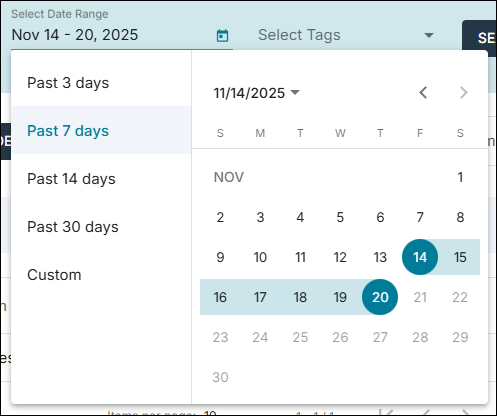
- You can select one of the common date ranges (such as Past 14 Days) by clicking it on the left.
- To specify a custom range of dates, clicking the beginning and end days on the calendar. (You can use
 to move to the preceding month and
  to return the current month.)
- Click Search.
- Click the Select Date Range calendar picker.
- You can click Panic Button at the top right of the grid to see any Panic Button events, which are triggered when a driver presses the camera device's physical SOS button. Videos are automatically captured for these events.
- You can click the Event On-Demand tab to view on-demand requests for HD video about specific events.
- In the Status column, you can see the status of a video request, such as Processing or Ready.
- To view a video that is ready, click
 in its row on the right.
- You can see the Trip Details window for the trip the request was made for by clicking
 . (See Viewing Trip Details.)
Requesting a Video
To request a new video on the portal Vision Request screen, follow these steps:
Note: Again, you will find it easier to use the Trip Details window to request a video (see Viewing Trip Details).
- At the top of the page, click Request Video.
The Search Trip window will appear.
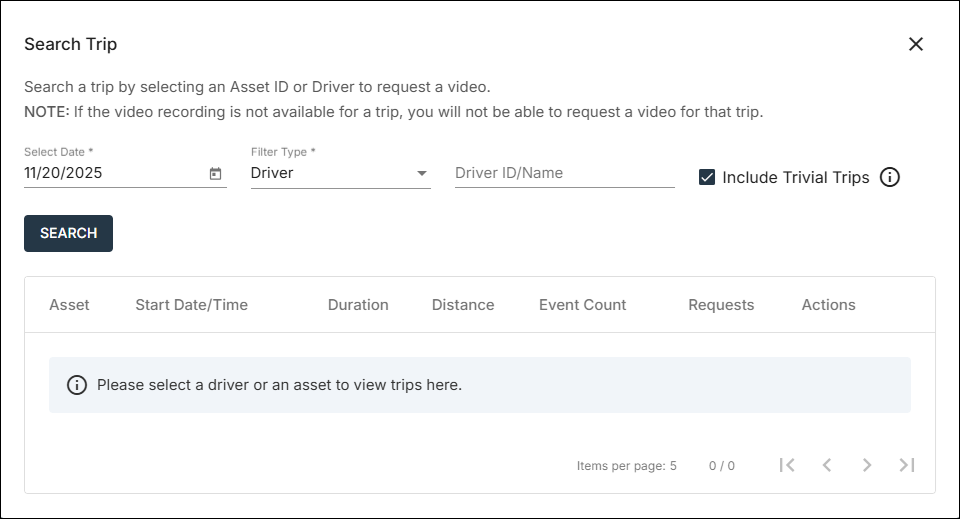
- Click the Select Date calendar picker and select the day you need.
- Click the Filter Type drop-down arrow and select either Driver or Asset (for a particular bus).
- Type the vehicle's or driver's name/number in the field to the right.
- Select the name/number in the drop-down list that appears.
- Click Search.
The window will expand to show results for the day and asset/driver you entered.
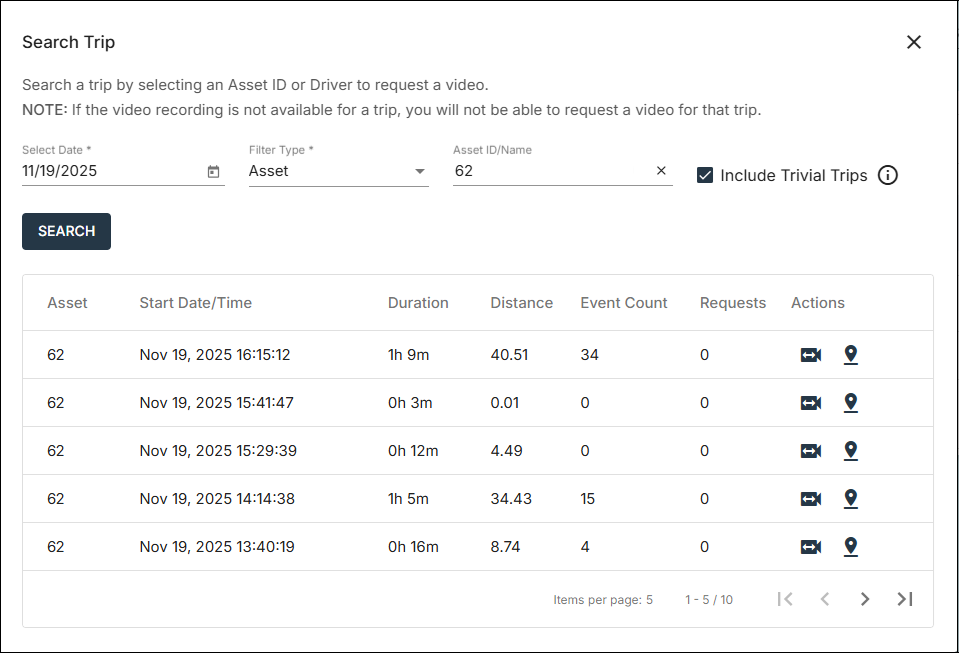
- Locate the start time you need in the Start Date/Time column.
- Click
 in its row.
The Trip Timeline window will appear.
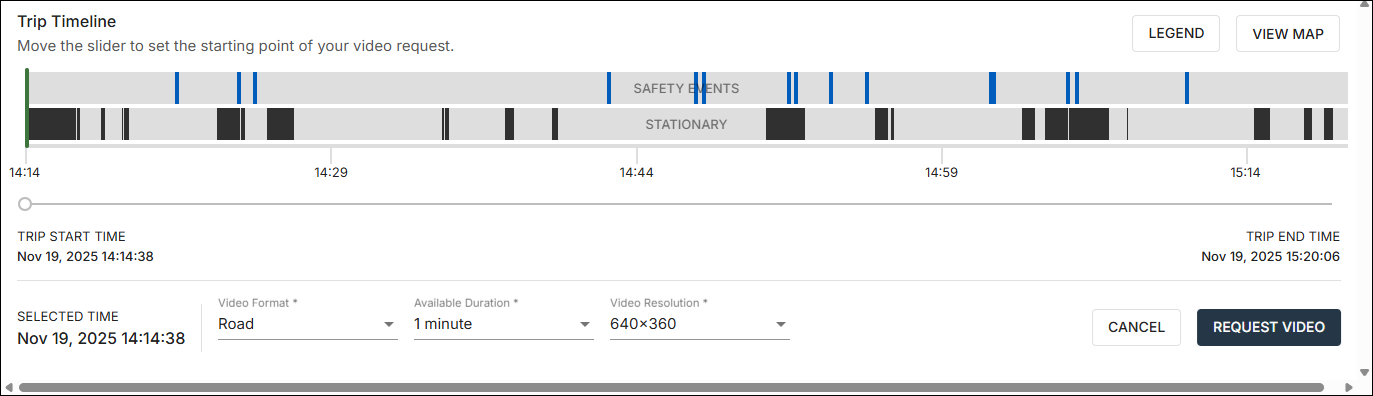
- Click and drag the handle to the beginning point on the timeline that you want to have a video of (
 will become
  as you drag).
The green line in the timeline is the starting point, and the blue lines are when the trip safety events occurred.
- Click the Video Format drop-down arrow and select the format for the video you want (such as Road + Driver).
- Click the Available Duration drop-down arrow and select the amount of time to include (such as 2 Minutes).
- Click the Video Resolution drop-down arrow and select the resolution you want (such as 320 x 180).
- Click Request Video.
The Confirm Request Settings dialog box will appear.
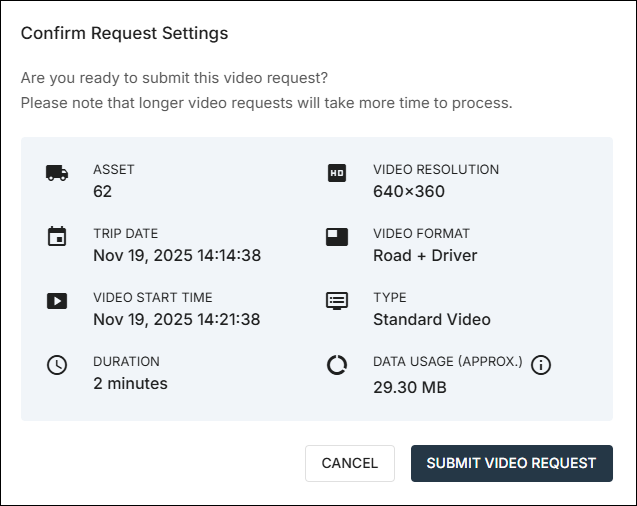
- If the settings are what you want, click Submit Video Request.
A success message will be displayed.
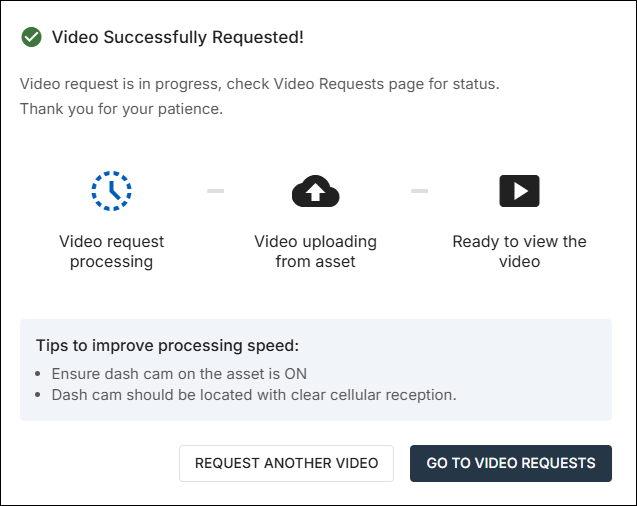
- You can click Go to Video Requests to return to the Video Requests screen and see the status of your request.