
The Vision Portal Drivers screen lists the drivers and installers you have added via the portal, plus enables you to add new Vision drivers/installers and set them up for coaching.
Caution: This feature is totally unrelated to any drivers you have entered for Time and Attendance (TAA), if your school district has that module. You don't have to add your drivers via the Vision Portal, unless you want their names to be attached to your Vision trips/events or want to use the portal's Coaching option. (See Using the Coaching Screen for details.)
Viewing Your Vision Drivers
You can find a list of the drivers added to the Vision Portal as follows:
- Click
 >> Drivers.
The Drivers screen will appear.
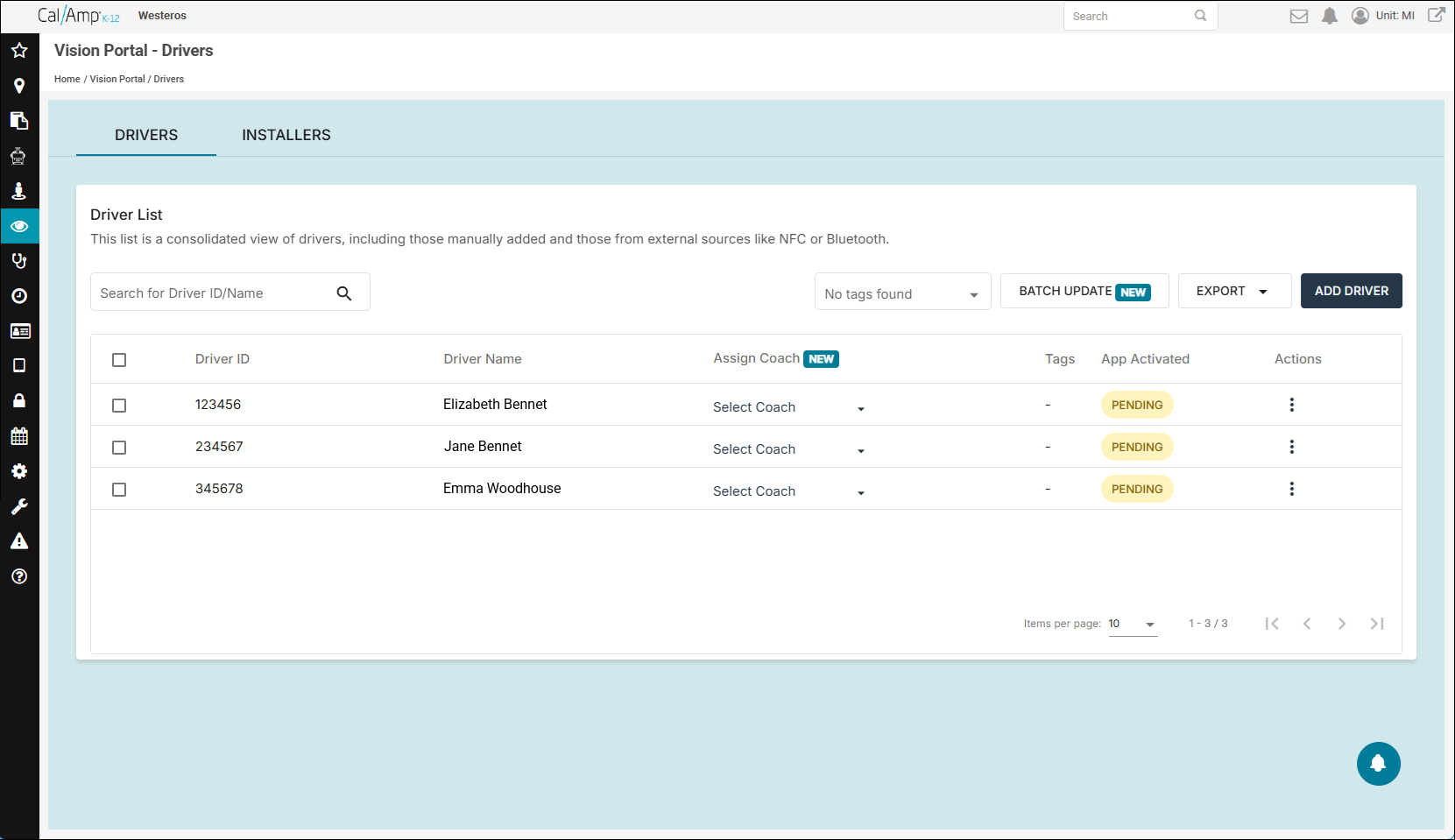
- If the Installers tab is shown, click the Drivers tab.
- To find the data row for a certain driver, type part of their name or driver ID in the Search for Driver ID/Name field.
As you type, matching drivers will appear in the list.
- If your school district uses tags, you can use the Tag drop-down list to filter the results to just the selected tags.
- You can click the Export drop-down arrow and select Driver List CSV to have the list of drivers exported to a CSV (comma-separated value) file. (You will be emailed a link that will let you download the file.)
Adding Vision Drivers
To add several drivers to the Vision Portal, follow these steps:
Note: Jump down to the next numbered list to add a single driver.
- On the Vision Portal Drivers screen (see steps 1 and 2 of the preceding section), click Add Driver at the top right.
The Add Driver page will appear.
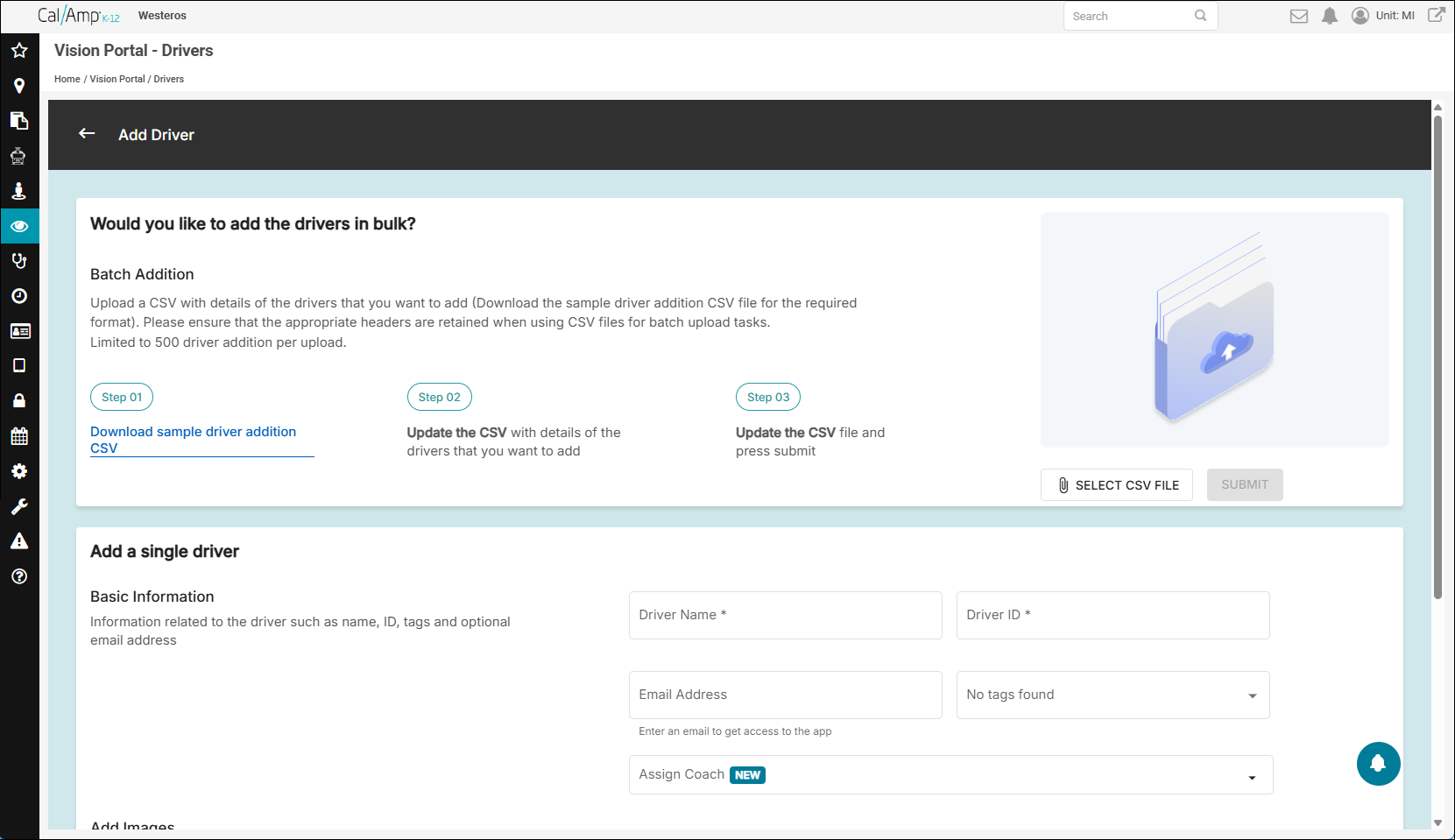
- In the Batch Addition section, click Download Sample Driver Addition CSV under Step 01.
- Open the sample_driver.csv file that was downloaded to your computer.
- Enter the drivers' full names, one driver to a row, in the Driver Name column.
Note: You'll want to delete the sample driver data by writing over it. - Type the drivers' IDs (such as badge numbers) in the Driver ID column.
- Optionally, you can provide the drivers' email addresses, names of their coaches, and their coaches' emails.
- Save the CSV file with your changes.
- Back on the Vision Portal Add Driver screen, click Select CSV File on the right side of the Batch Addition area.
- Navigate to your updated sample_driver.csv file and select it.
Its name will appear in place of Select CSV File.
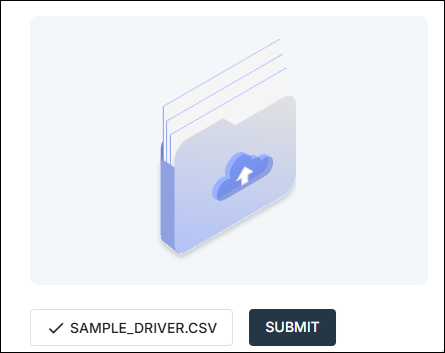
- Click Submit.
A success message will appear at the top of the screen.
- Click the back arrow to the left of Add Driver to return to the Drivers list.
You'll see your newly added drivers in the grid.
You can add just one driver to the Vision Portal as follows:
- On the Add Driver screen (see step 1 of the preceding set of steps), if needed, scroll down to see the entirety of the Add a Single Driver section.
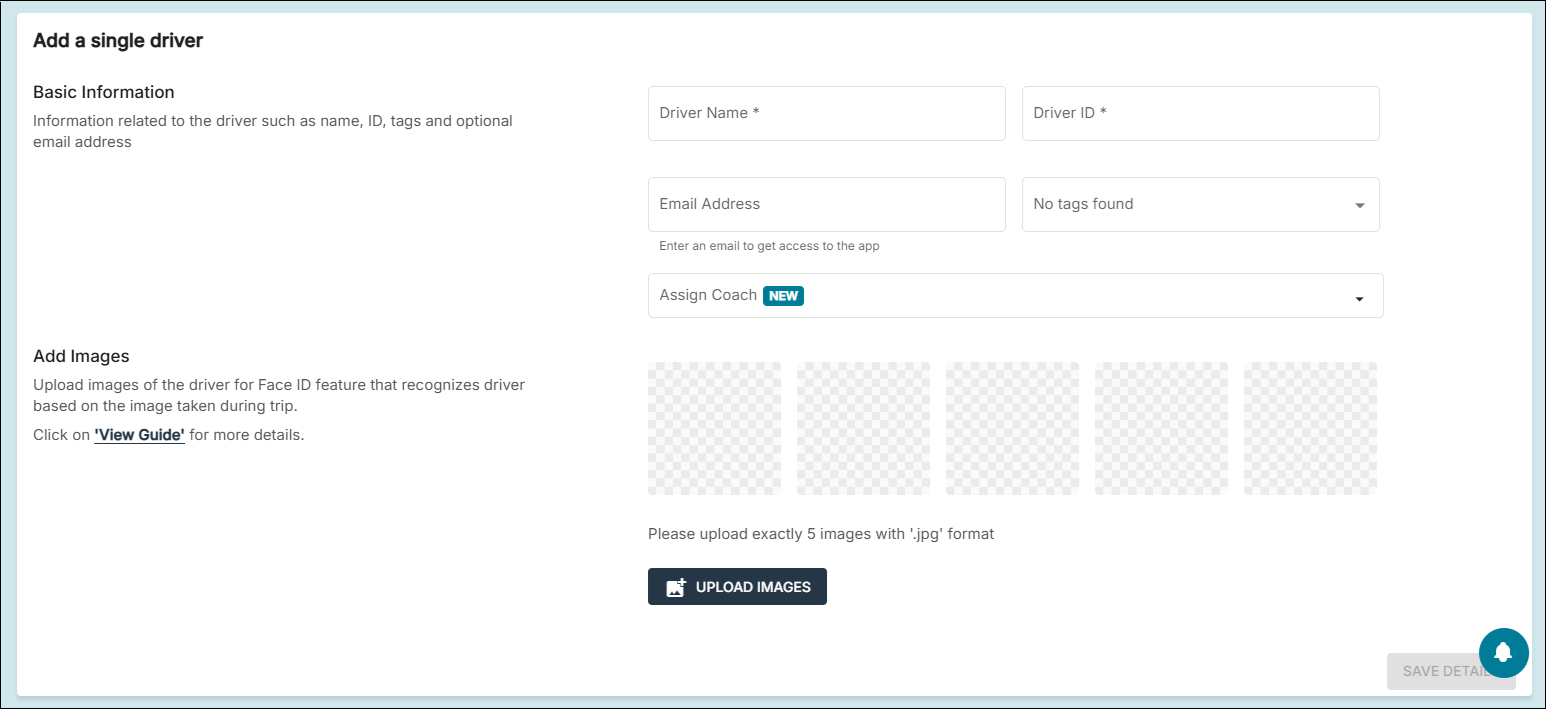
- Type the driver's full name in the Driver Name field.
- Type the driver's ID (such as their badge number) in the Driver ID field.
- Optionally, you can provide the driver's email address, associated tags, and coach's name. (For the latter, you click the Assign Coach drop-down arrow and select the coach from the list.)
- Also optionally, you can upload five JPG images of the driver.
Note: This is a requirement if you want to use facial ID. - Click Save Details at the bottom right.
You'll be returned to the Drivers screen, where you can see your newly added driver in the grid.
MANAGING INSTALLERS
You also can add Vision installers using the Drivers page. The process is similar to what's shown above for drivers, but you go to the Installers tab at the top of the screen instead.