
On the Absence Requests screen, supervisors can approve or deny absences that have been requested by their employees.
Note: Your user role will need Can View and Can Edit privileges for the Absence Requests screen. (On the Add/Edit Role screen, this is on the TAA Screens tab in the Privileges area.) If you don't have these permissions, contact your CalAmp K-12 administrator to request them. You can direct them to these articles for guidance: Adding a Role and Changing a Role's Privileges or Name.
When an employee makes a request via the TAA Portal or the CalAmp K-12 mobile app (as shown in Requesting Time Off and Requesting Time Off), the request will be displayed on the Absence Requests screen. Note that an employee's request will be visible ONLY to the approvers who have been assigned to handle their department. (See Setting Up Absence Requests and Approvals if needed.)
To approve or deny a request (as a designated approver), follow these steps:
- Click
 >> Absence Requests.
The Absence Requests screen will appear and display any requests made by employees in the department(s) assigned to you.
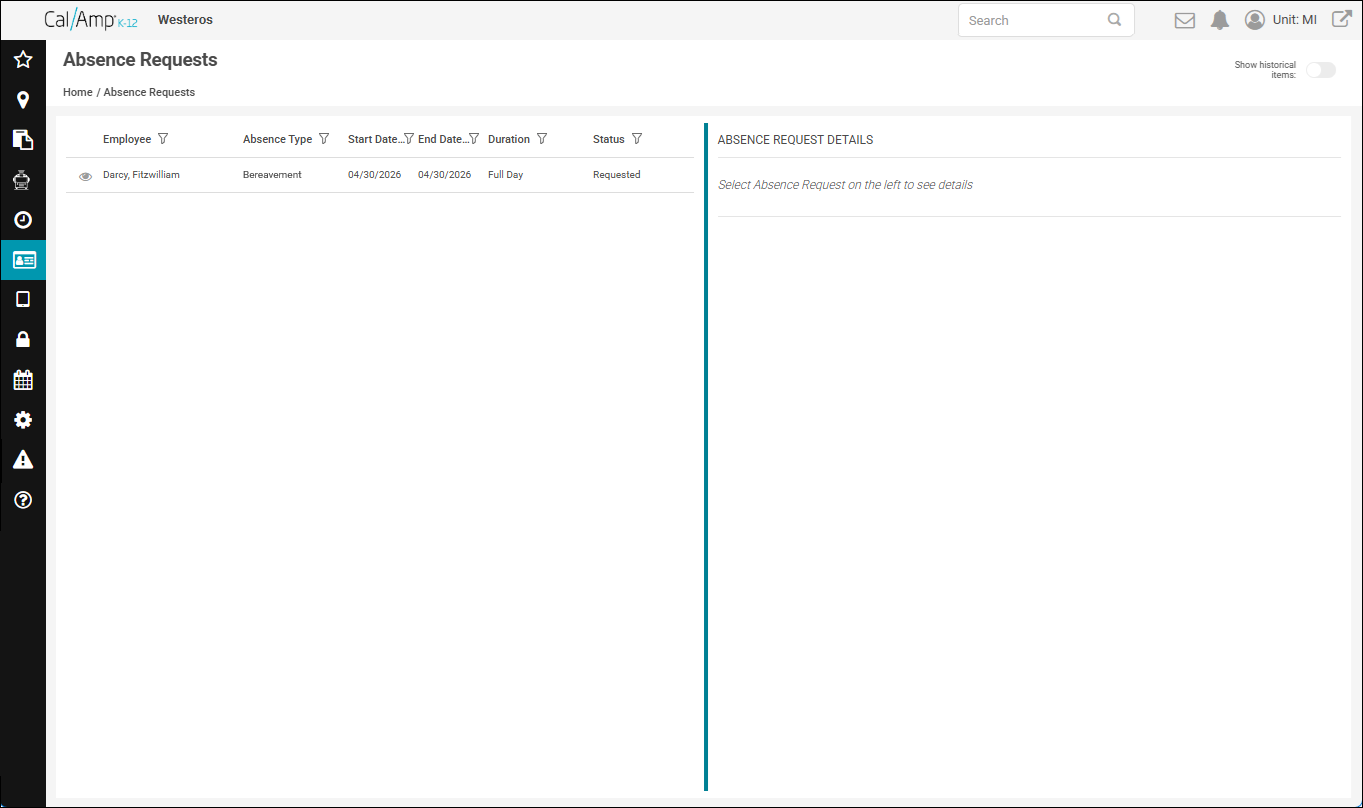
- Click
 at the far left in the row of the request you need to approve or deny.
The request details will appear in the right pane.
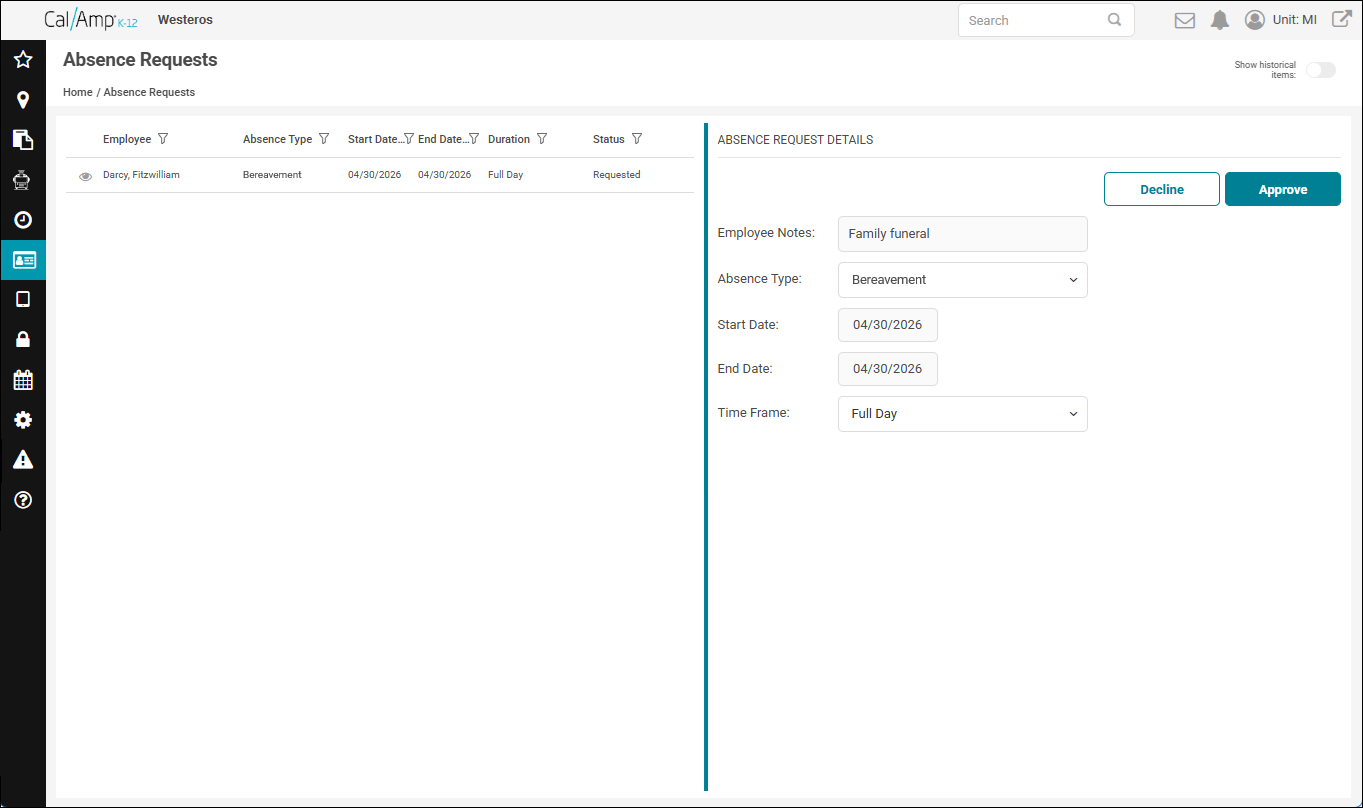
- Click Approve if the request is granted or Decline if refused.
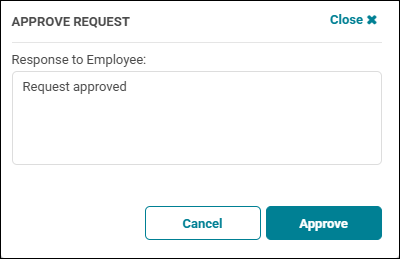
If you clicked Approve, the Approve Request dialog box will appear.
If you clicked Decline, the Decline Request dialog box will appear.
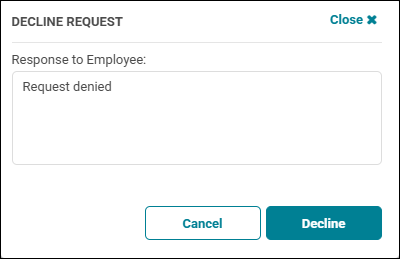
Both dialog boxes have default text in the Response to Employee area.
- If you want to send a different message, select the current text and type what you want to say.
- Click Approve or Decline at the bottom right of the dialog box.
The absence request will disappear from the left pane, as it is no longer an active request for you.
If the rule that applies to the requesting employee needs more than one approval/denial, the next ranking supervisor will receive the request. If you are the only (or highest level) approver required, the request will be saved as approved or denied.
- You can view previous requests by clicking the Show Historical Items toggle at the top right.
By default, requests from two months ago and one month in the future will be displayed, but you can select different dates using the Start and End Date calendar pickers (and then clicking ).
).
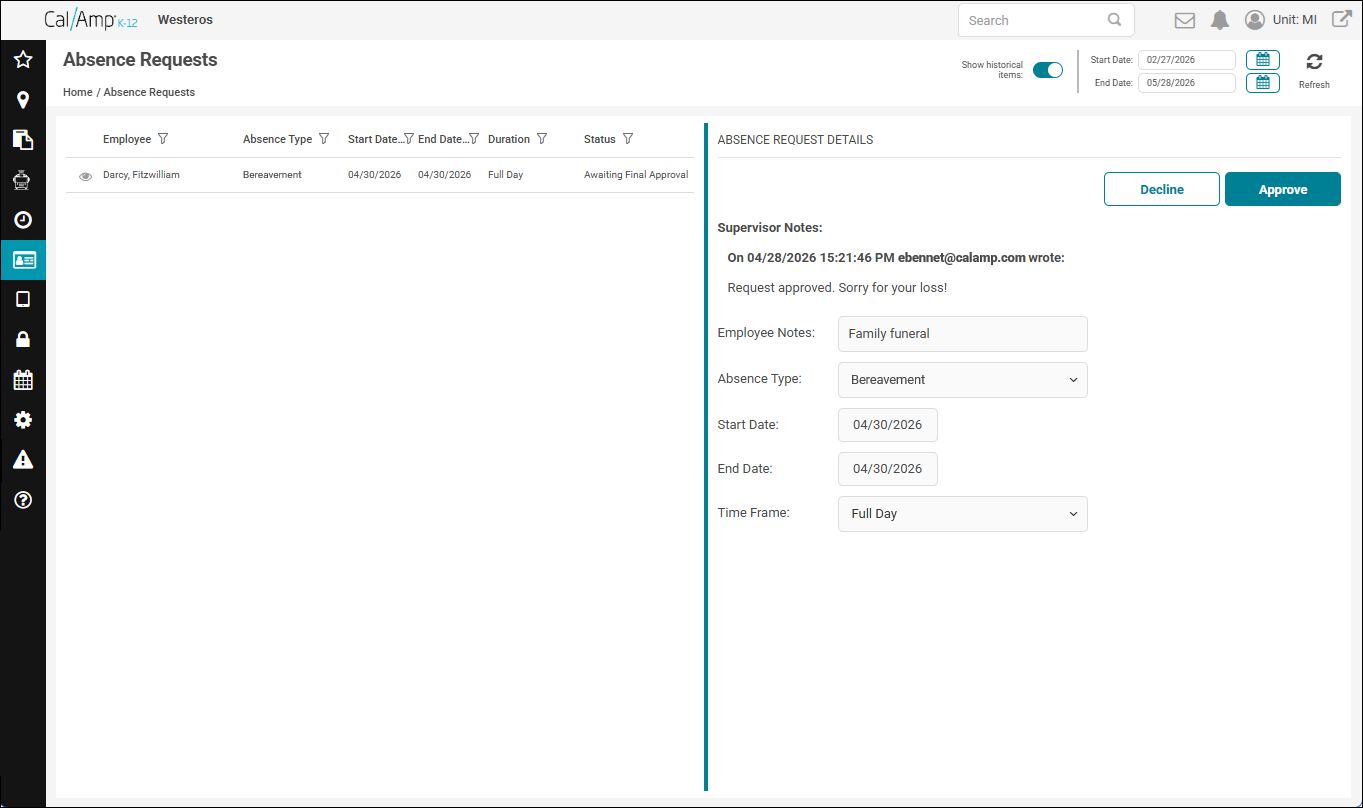
- You can change a response up until the point that the request has received the number of approvals needed to become a full-fledged absence or has been fully denied (after all approvers have responded).
Note: After a request has been approved by all the required approvers, it will be recorded as a TAA absence and will apppear on the Absences screen. See Viewing Employee Absences for details on checking entered absences.