
On the Portal/MDT Settings screen, you can set up requesting time off in the TAA Portal (and CalAmp K-12 mobile app) and approving the requests in TAA (Time and Attendance). In order for absence requests and approval to work, you must set up approval rankings and rules. If ranks and rules are not configured and an employee attempts to request time off using the portal, they will receive a message saying that absence requests haven't been set up and that they should contact their supervisor.
Note: Make sure that you have added absence types before you proceed. Go to Adding an Absence Type if needed.
Enabling Absence Requests
First, you must turn on the ability for your employees to make absence requests as follows:
- Click
 >> Portal/MDT Settings.
The Portal/MDT Settings screen will appear.
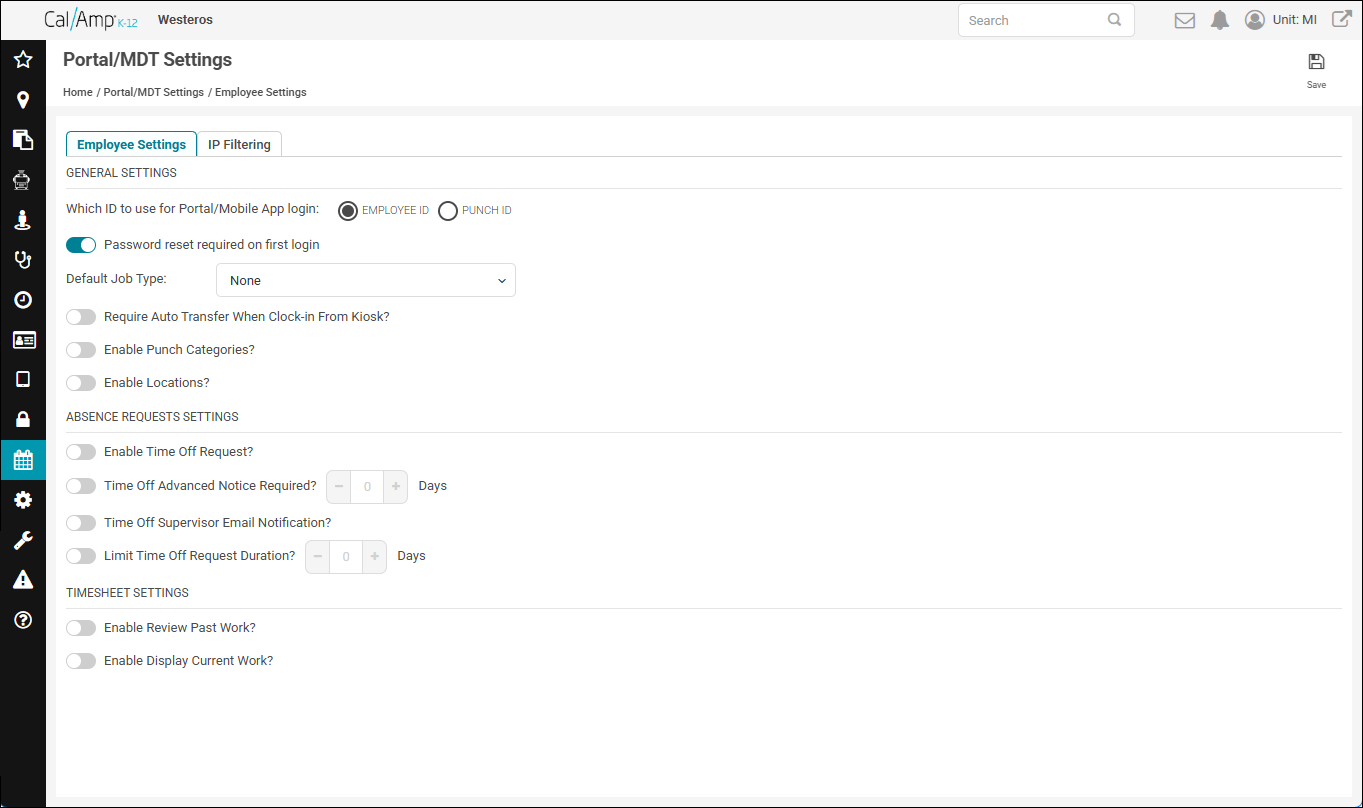
- Under Absence Requests Settings, select Enable Time Off Request?. (
 means selected, and
  deselected.)
Absence Request Ranks and Absence Request Rules tabs will appear, which you will use in the following two sections.
- You can enable other absence request settings as needed. Here are the ones available:
- Time Off Advance Notice Required?: Dictates that employees request time off in the portal with a certain amount of prior notice. If you select this, the counter control to the right becomes enabled, which you use to specify the required number of days' notice (by clicking the plus and minus signs).
- Time Off Supervisor Email Notification?: Sends an email to an employee's supervisor when they request a day off.
Note: We recommend turning this on so that the approver is notified when a request has been made. - Limit Time Off Request Duration?: Restricts the number of days an employee can request to take off. When this is selected, you specify the maximum number of days using the counter control.
- Time Off Advance Notice Required?: Dictates that employees request time off in the portal with a certain amount of prior notice. If you select this, the counter control to the right becomes enabled, which you use to specify the required number of days' notice (by clicking the plus and minus signs).
- Click
 at the top right of the screen.
Note: For more information about the Employee Settings tab, go to Setting TAA Portal/MDT Options. We recommend also turning on Enable Review Past Work? and Enable Review Current Work?.
Configuring Absence Request Ranks
Second, you'll need to set up the ranks for your employees. The rankings here are a numerical system for supervisory control of absence requests, with values ranging from 1 to 10. 10 is the lowest rank and 1 the highest. In essence, these ranks create a chain of command, with the higher ranks being in charge of approving time off for the lower ranks. The rules you set up for approval, which you'll be shown below, can have two (or more) approvers of differing ranks, and the approval requests would go to the lower rank first, such as a rank 4 supervisor, before it goes to the higher one, such as a rank 3 manager. To set up rankings, follow these steps:
- Plan out how you will rank the people in your organization. A good place to begin is looking at your employee hierarchy, considering who is responsible for approving time off for others.
Note: You only need to provide a rank for approvers, but some school districts set up rankings for all their employees by employee type. (For example, they rank all drivers as 10 and make all of their supervisors 5 or lower.) As you put together your plan, make sure that you have enough approvers to cover when others will be out of the office. Be aware that you can't have two approvers for a single absence approval rule with the same rank. - On the Portal/MDT Settings screen, click the Absence Request Ranks tab.
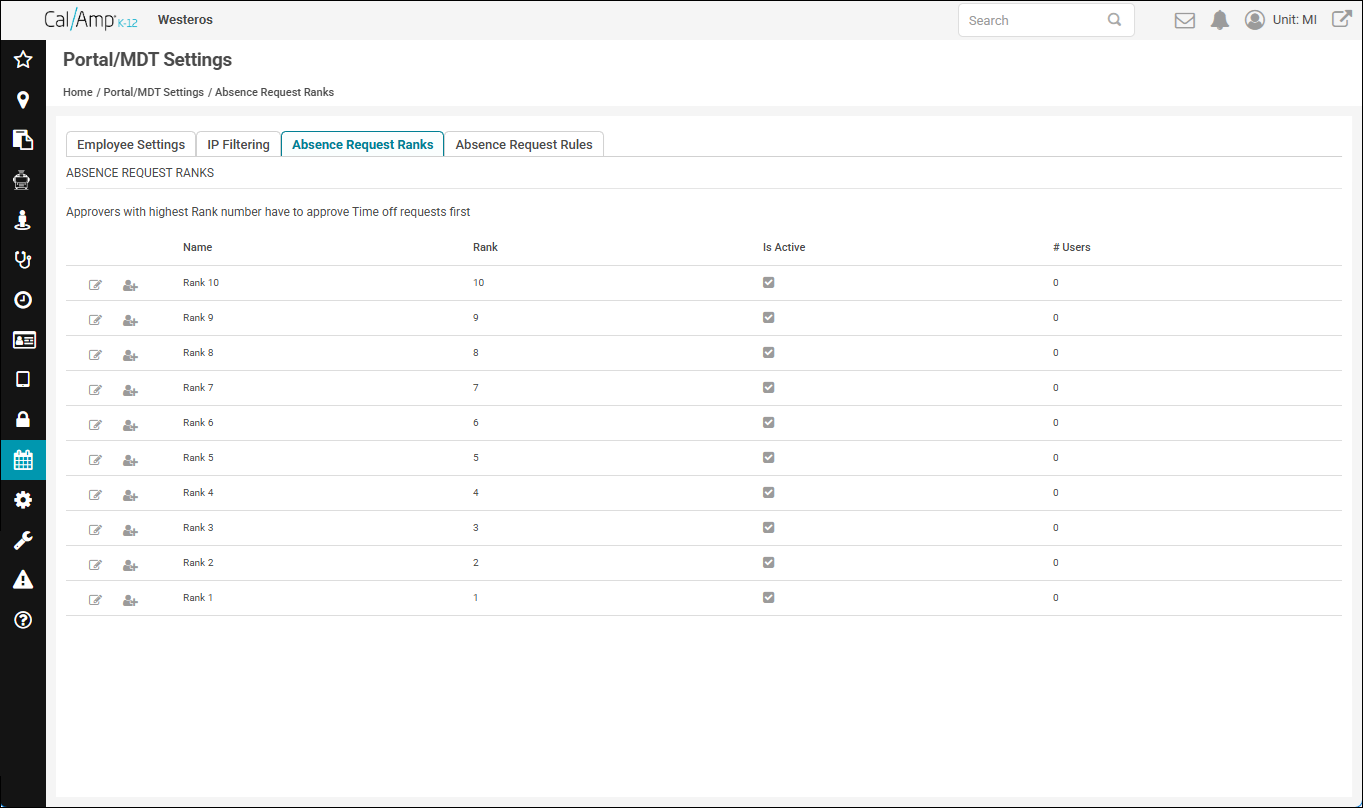
- Begin with the highest-level supervisors, rank 1.
Click to the left of Rank 1.
The Assign Users for Rank 1 box will appear.
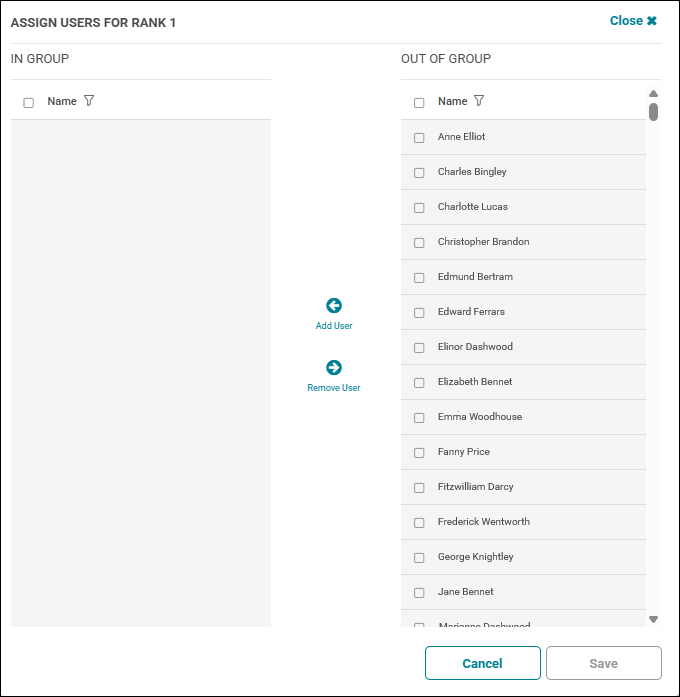
- In the Out of Group list, click the check boxes to the left of the supervisors you want to assign to rank 1.
- Click
 .
.
The users you selected will appear in the In Group list.
Note: If you need to remove approvers you added, select their check boxes in the In Group list and click .
. - When you are done adding rank 1 users, click Save at the bottom right of the box.
- Repeat steps 3 through 6 for all the ranks you need (rank 2, rank 3, and so on).
Note: Your approvers should have access to CalAmp K-12 to facilitate reviewing and approving requests. If they are employees but not users, consider adding them as a linked user.
Their user role will also need Can View and Can Edit privileges for the Absence Requests screen. (On the Add/Edit Role screen, this is on the TAA Screens tab in the Privileges area. See Adding a Role or Changing a Role's Privileges or Name if needed.)
Determining Absence Request Rules
Third, you will create the rules to be followed when employees request time off — in particular, who approves requests for different departments — as follows:
- Make sure that you know which approvers will be approving time off for each department.
Here are some business rules you'll need to consider:
- A department can't be in more than one rule. For example, the Lead Drivers department can't be in Approval Rule 1 and Approval Rule 2.
- A rule can't contain two approvers of the same rank. For example, Elizabeth Bennet and John Smith can't be the two approvers for Approval Rule 1 if they are both rank 1.
- When more than one approver is selected, the absence request will move up the rank chain until the number of denials it receives is equal to the number of approvals.
- A department can't be in more than one rule. For example, the Lead Drivers department can't be in Approval Rule 1 and Approval Rule 2.
- On the Portal/MDT Settings screen, click the Absence Request Rules tab.
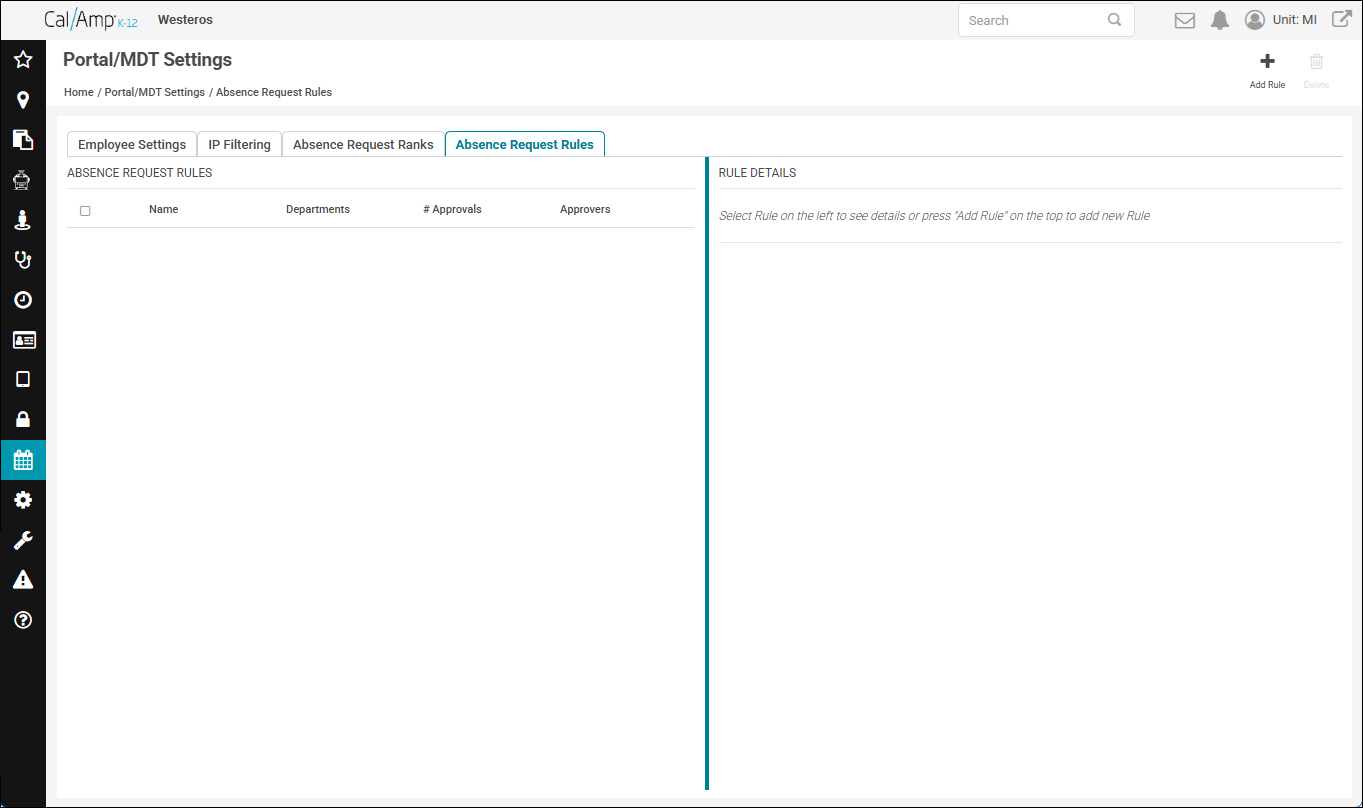
- Click
 at the top right of the page.
The Rule Details pane will be updated with these options:
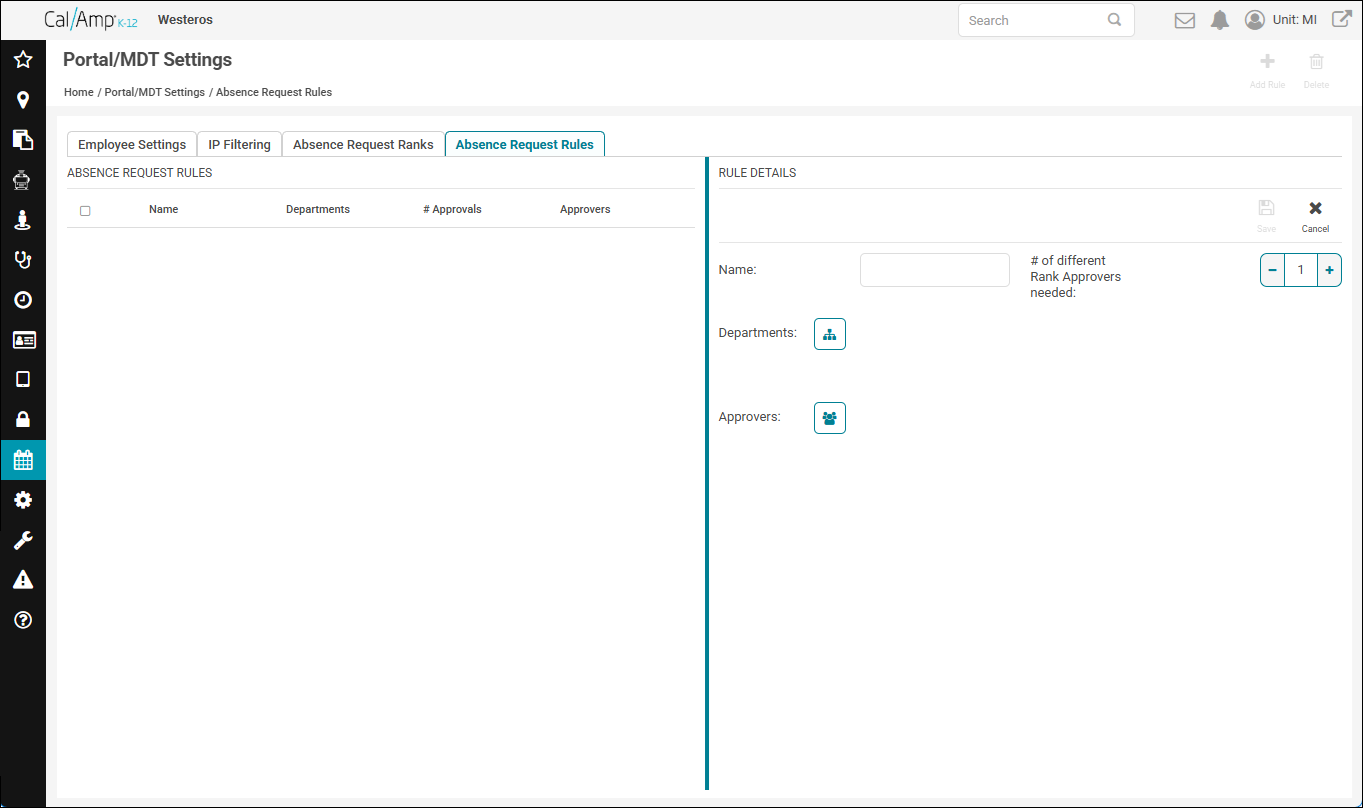
- Type a name for the rule in the Name box. For example, you might name the rule with a department name.
- To the right of # of Different Rank Approvers Needed, use the +/- control to select the number of supervisors who need to approve absence requests for the chosen department(s). For example, if two levels of managers need to approve a request, click the + icon once to make that a 2.
- Click
 to the right of Departments.
The Departments window will open and show your department structure.
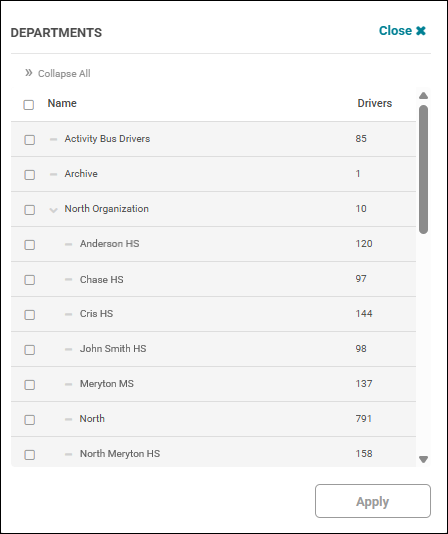
- Select the check box(es) to the left of the department(s) of employees this rule will be used for for absence request approvals.
- Click Apply.
The name(s) of the department(s) you chose will appear in the Departments area.
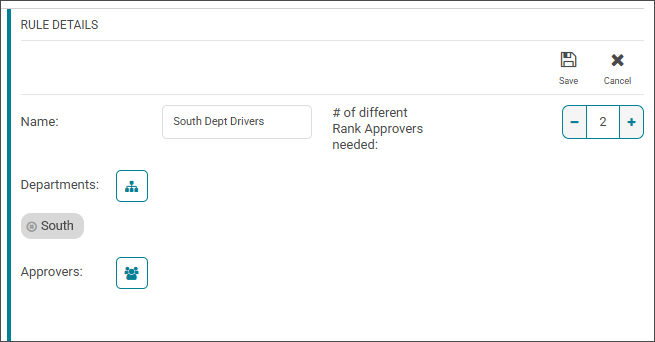
- Click
 to the right of Approvers.
The Approvers window will appear and show all the ranks and approvers created for your school district.
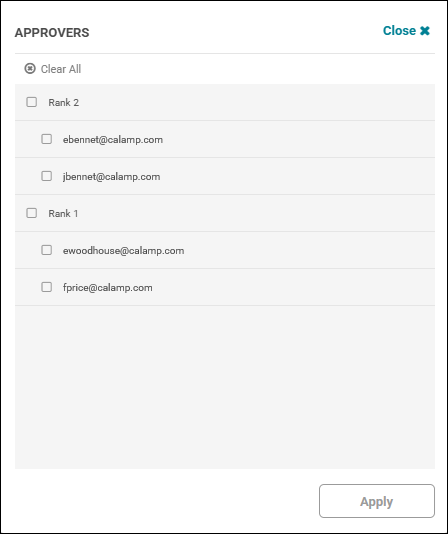
- Select the check box(es) to the left of the supervisor(s) who will be responsible for the approvals.
Note: Select only ONE approver per rank. Remember, the rule cannot have two approvers of the same rank.
Make sure to specify the same number of approvers you chose for the # of Different Rank Approvers Needed option! (In the example in the preceding figure, if the rule requires two approvers, you would select one from the rank 1 supervisors and one from the rank 2 choices.) - Click Apply.
The approvers' email addresses will appear under the Approvers list, ordered by rank.
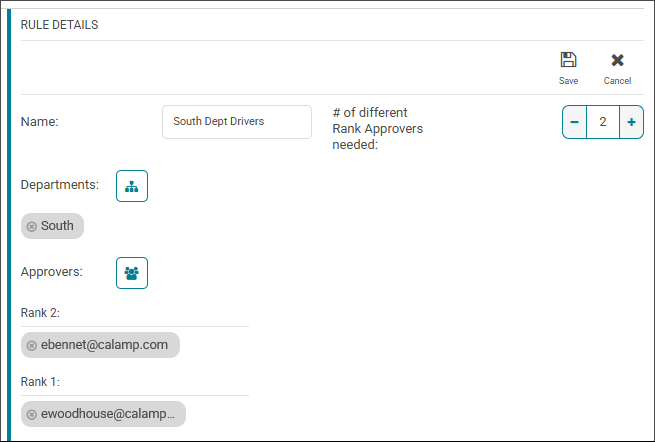
- Click at the top right of the Rule Details pane.
The rule name will appear in the left pane and will be used for absence requests/approvals going forward.
Note: If you need to edit the rule, you can click in its row and follow the preceding steps.
To delete a rule, select its check box in the Absence Request Rules pane and click at the top right of the screen. There is no Warning dialog box, so be sure you want to remove the rule before you click !
APPROVING AN ABSENCE REQUEST
To see how to approve an absence request, go to Approving Absence Requests.