
If you need to update a previously created speed limit–correcting geofence (one that was added on the Geofence Based Speed Override screen solely for the purpose of fixing an inaccurate posted speed limit value), follow these steps:
Note: To see how to add a new geofence to correct a posted speed limit in CalAmp K-12, go to Adding a Geofence to Correct a Road's Speed Limit.
- Click
 >> Road Geofencing.
Note: Don't be confused by the menu item name (Road Geofencing). It doesn't match the label of the page it opens.
The Geofence Based Speed Override screen will appear.
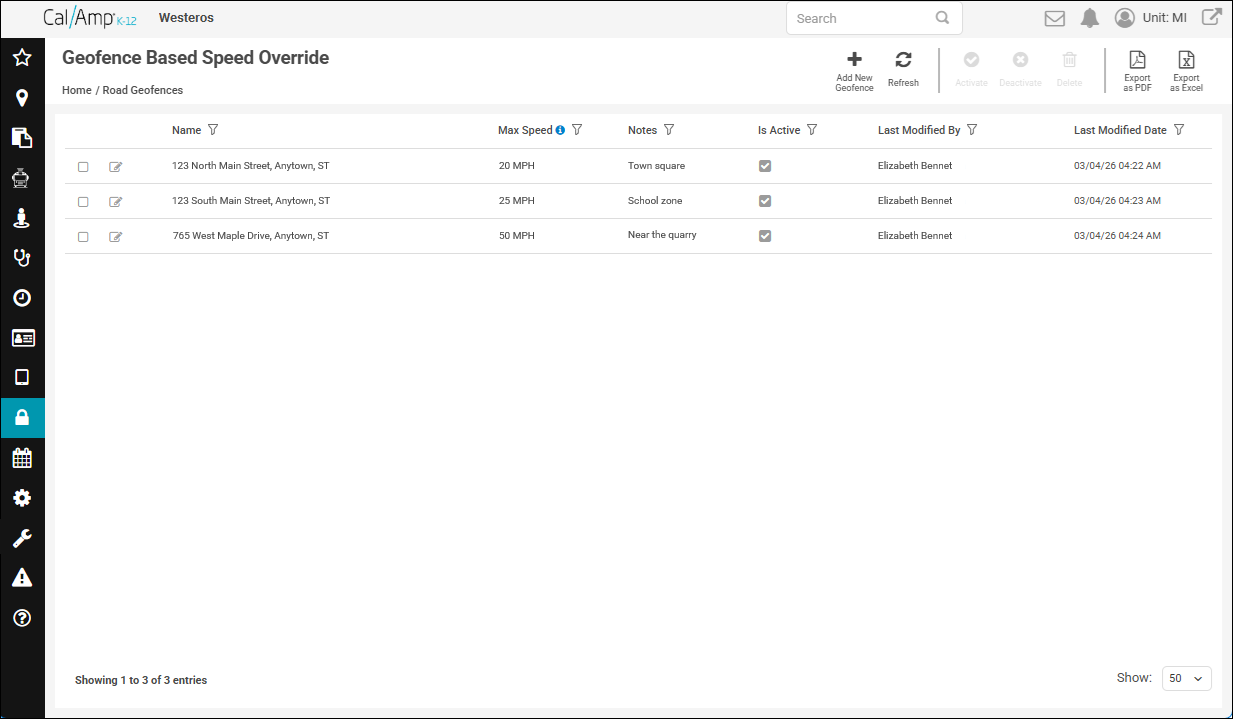
- Click
 in the row of the geofence you need to modify.
The Edit Name Road Geofence screen will appear.
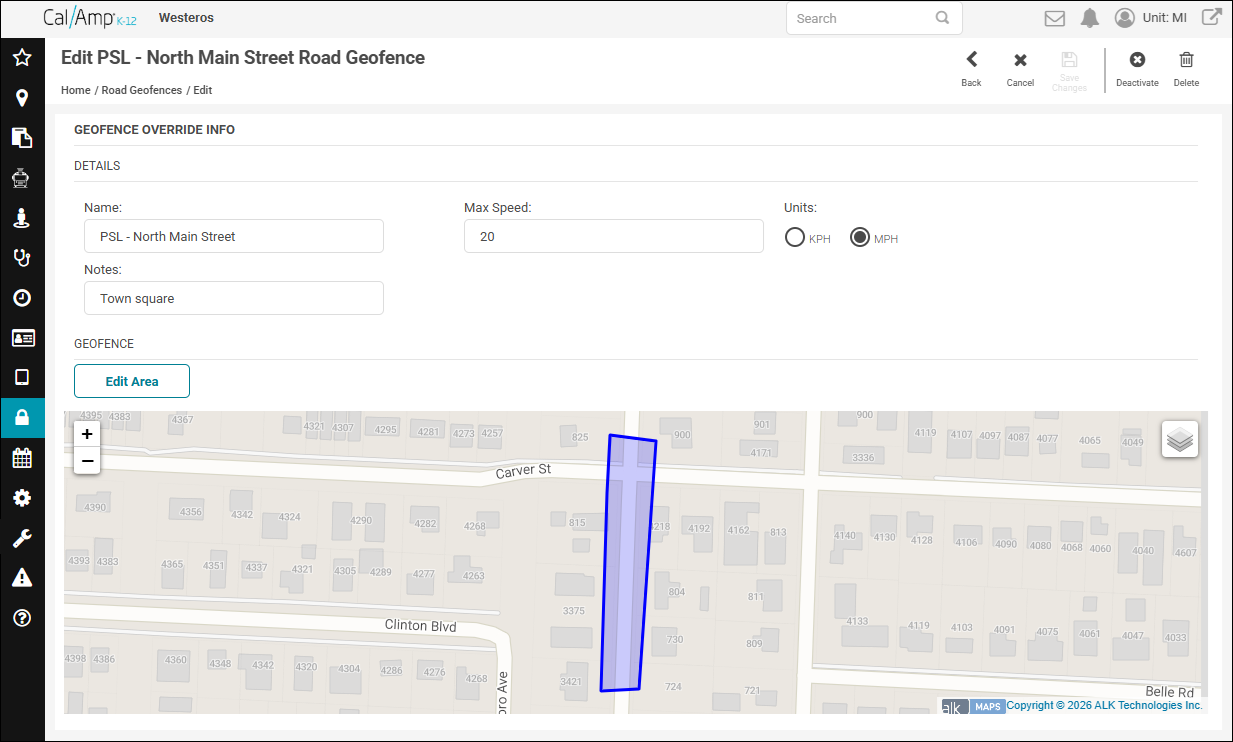
- To change the geofence's label, select the current text in the Name field and type the new name, such as PSL - Main Street.
Note: You might want to add a prefix for the geofence name to indicate that this is only for correcting the speed limit, or you could simply use the address of the location. Just make sure that you don't use the same name as one of your actual locations. - You can update the actual posted speed limit by selecting the value in the Max Speed field and typing the correct one.
- Select the unit of measurement to use (KPH or MPH).
- Optionally, you can replace any comments about the street in the Notes field.
- Click Edit Area.
Options will appear at the top right of the map.

- Click Edit.
Squares will appear on the edges of the geofence.
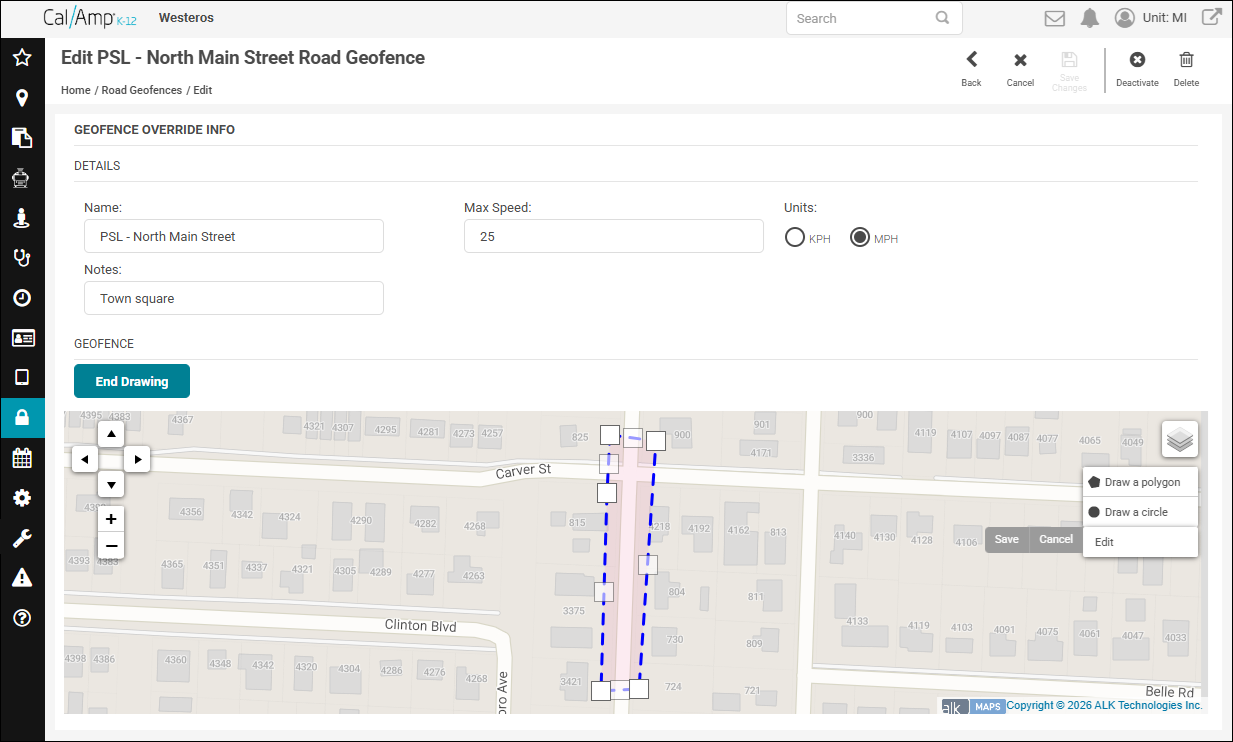
- Click and drag the squares to fine-tune the shape.
Note: If you need to zoom in or out, use the zoom controls at the top left of the map. If you need to move the map after zooming, you can use the arrows above the zoom controls to move your view where you need it. If you’d prefer to modify the shape using a satellite image, hover over the Layers icon at the top right of the map and select Satellite. (To go back to the map image, click Streets.) - Click Save when you are done (the gray button on the map to the left of the top-right options).
- Click End Drawing.
- Click
 at the top right of the screen.
You'll be returned to the Geofence Based Speed Override screen. If you made any changes in the Details area, you'll see them in the grid.
DEACTIVATING OR DELETING THE GEOFENCE
On the Edit Road Geofence page, these are the options to the right of the button in the toolbar:
 Deactivate: Suspends the PSL geofence from use. You can reactivate by editing it again and clicking
  (or by following the steps in Deactivating/Activating Speed-Override Geofences).
 Delete: Removes the geofence from the database. There is no undoing a deletion (outside of re-creating it).