
You can temporarily suspend the use of speed-override geofences (ones that were added on the Geofence Based Speed Override screen solely for the purpose of fixing an inaccurate posted speed limit value) if they are currently not applicable but will be again in the future. Later, when the corrections are needed again, you can reactivate them.
Note: See the second section below, "Activating Your Speed-Override Geofences," to see how to reactivate the geofences.
Deactivating Your Speed-Override Geofences
- Click
 >> Road Geofencing.
Note: Don't be confused by the menu item name (Road Geofencing). It doesn't match the label of the page it opens.
The Geofence Based Speed Override screen will appear.
- Click the check box on the far left in the row of the geofence(s) you need to deactivate.
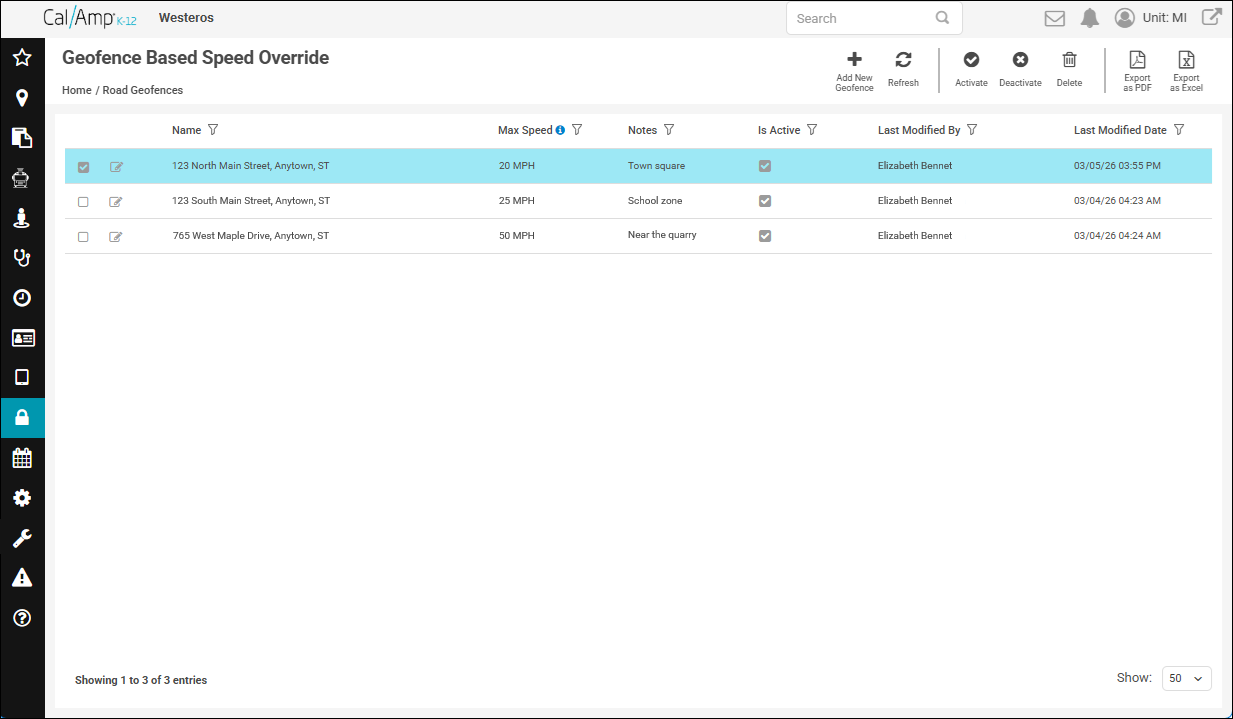
- Click
 at the top right of the screen.
A warning dialog box will appear.
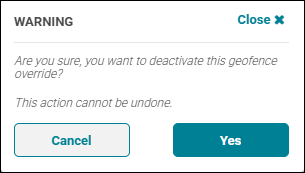
- Click Yes.
Activating Your Speed-Override Geofences
If you have previously deactivated any of your speed-override geofences, you can reactivate them as follows:
Note: A deactivated geofence will have an unchecked check box in the Is Active column.
- Click >> Road Geofencing.
Note: Don't be confused by the menu item name (Road Geofencing). It doesn't match the label of the page it opens.
The Geofence Based Speed Override screen will appear.
- Click the check box on the far left in the row of the geofence(s) you need to reactivate.
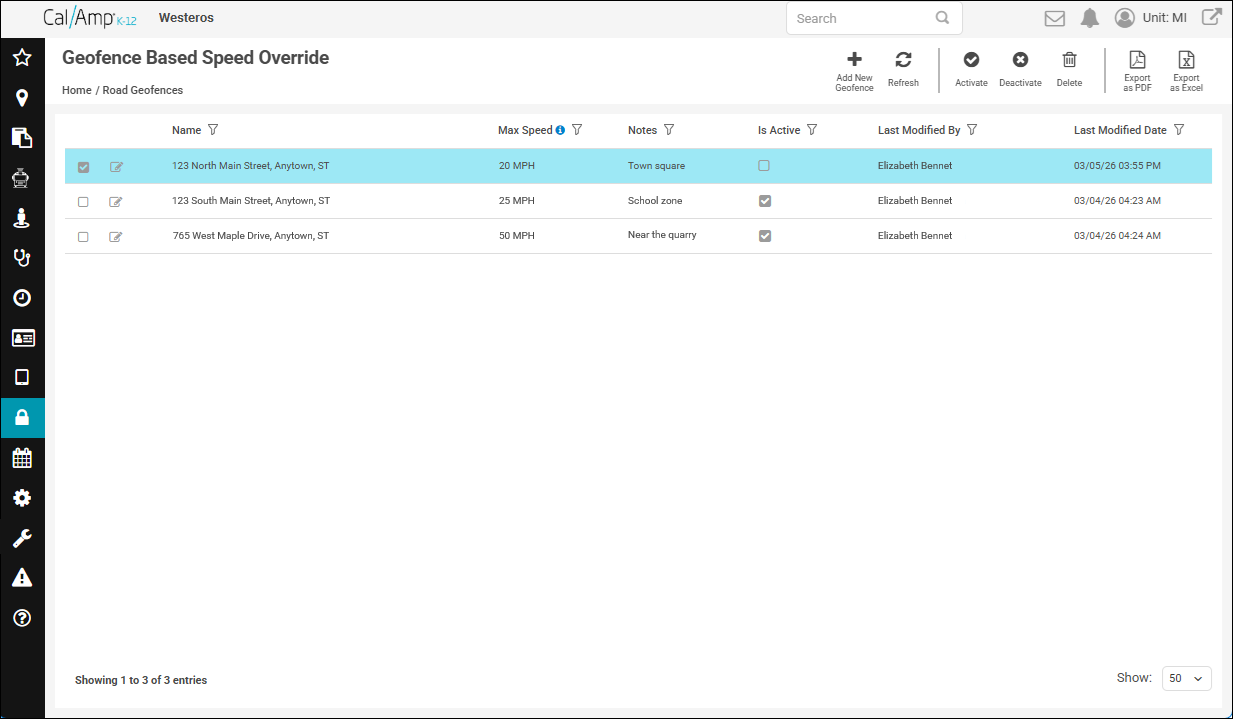
- Click
 at the top right of the screen.
A warning dialog box will appear.
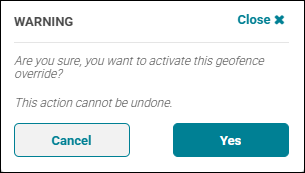
- Click Yes.