
If you see a posted speed limit (PSL) value in CalAmp K-12 that is incorrect, you can add a new geofence with the correct speed limit on the Geofence Based Speed Override screen. To do so, follow these steps:
- Click
 >> Road Geofencing.
Note: Don't be confused by the menu item name (Road Geofencing). It doesn't match the label of the page it opens.
The Geofence Based Speed Override screen will appear.
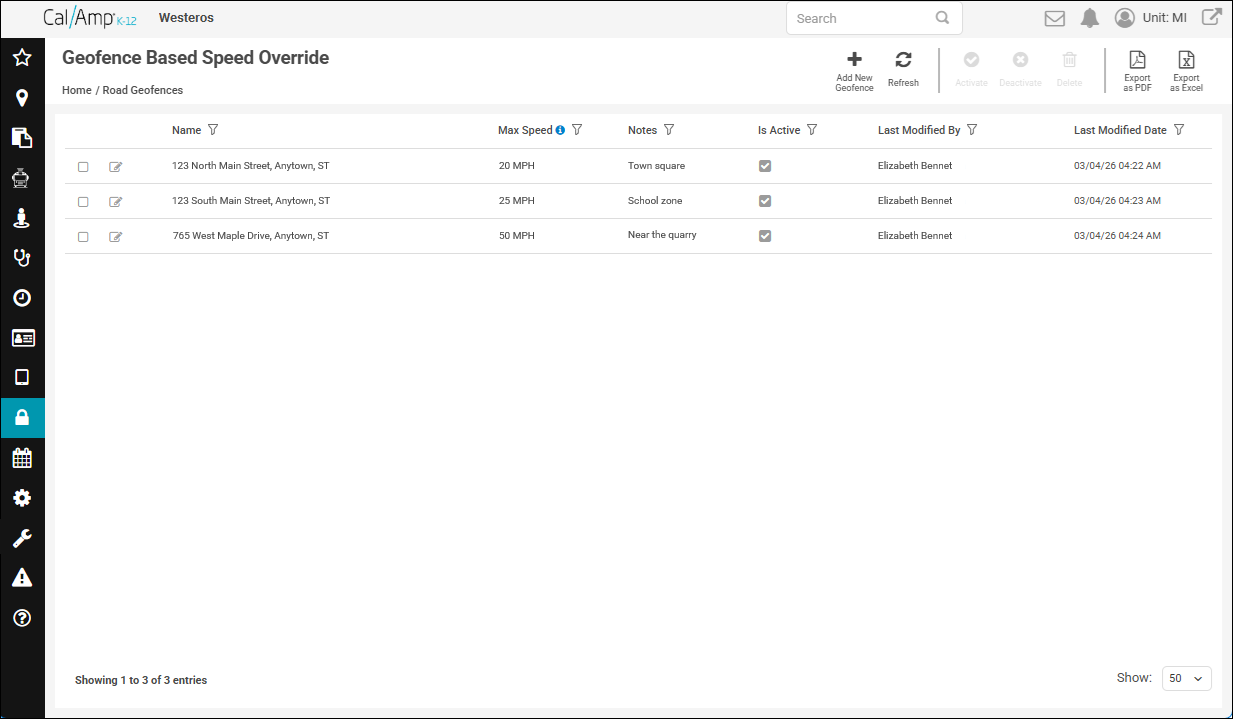
- Click
 on the top-right toolbar.
The Add New Road Geofence screen will appear.
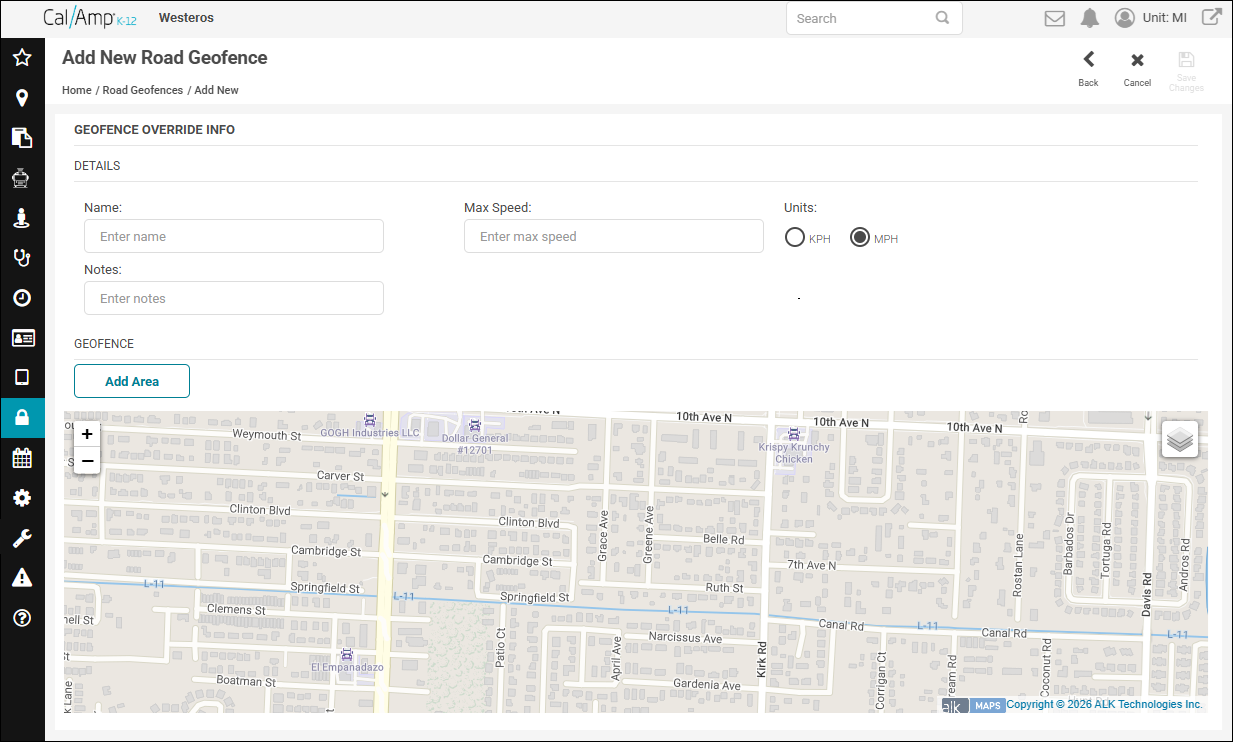
- Type a name for the geofence in the Name field, such as PSL - Main Street.
Note: You might want to add a prefix for the geofence name to indicate that this is only for correcting the speed limit, or you could simply use the address of the location. Just make sure that you don't use the same name as one of your actual locations. - In the Max Speed field, type the actual posted speed limit.
- Select the unit of measurement to use (KPH or MPH).
- Optionally, you can type any comments you have about the street in the Notes field.
- Click and drag the map to the area you need.
Note: You can use the zoom controls at the top left to zoom in or out. If you'd prefer to draw your geofence using a satellite image, hover over the Layers icon at the top right of the map and select Satellite. (To go back to the map image, click Streets.) - Click Add Area.
Your cursor will become a plus icon, and you'll use it to draw the speed-correcting geofence.
- Outline the street area by clicking a rectangular shape on the map.
Note: Keep the geofence small — only to the part of the road that needs the PSL to be corrected.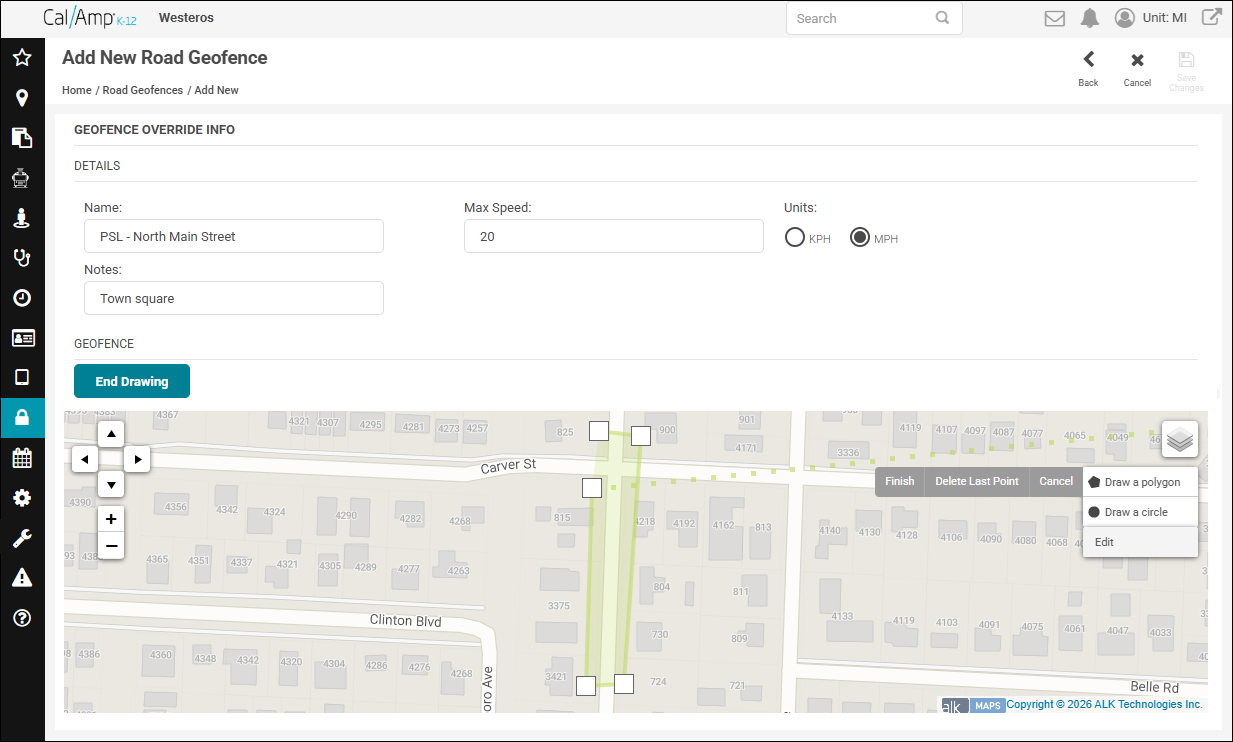
Each click will place a small square on the map, and a line will connect the two squares.
If you need to remove the last point you made, click Delete Last Point.
- To complete the geofence, click the first point you made as your last point.
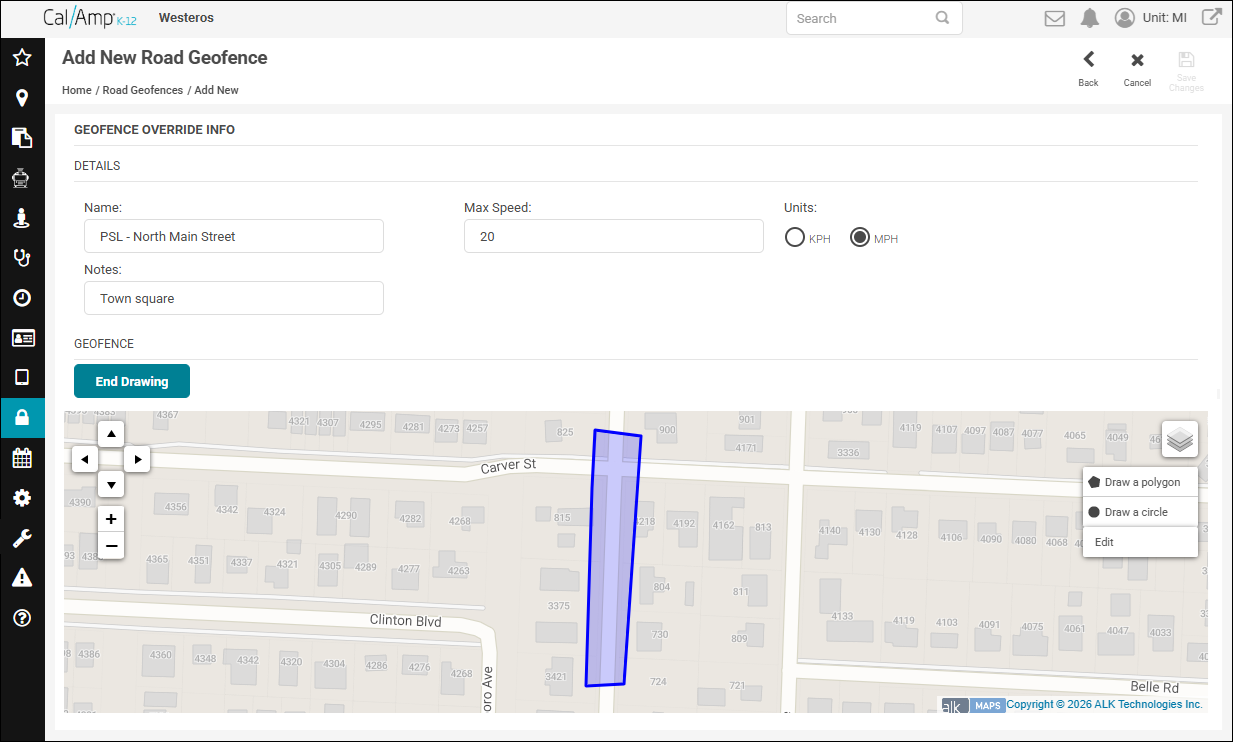
Note: If you need to modify the geoboundary, click Edit. Squares will appear on the lines of the shape that you can click and drag to fine-tune the rectangle. Click Save when you are done. - When you are finished, click End Drawing.
- Click
 at the top right of the page.
You will be returned to the Geofence Based Speed Override screen, and your new geofence will appear in the list.