
Event Points is a system you can use to track your drivers' performance. The Event Points screen is prepopulated with a list of various infractions and the points they cost against a driver.
The system starts the driver at 100 points for the time span in question. The points are deducted according to the occurrence of the triggering events — in other words, the driver scores 100 minus each infraction's point value, so the closer to 100 the rating, the better.
Note: Check out the other articles in this folder (Event Points) for details on the Event Points screen, how to change the point values, and where you can see your drivers' ratings.
On the Preferences >> Event Points screen, you can see the triggering events and their numeric point deductions in the Name and Points columns.
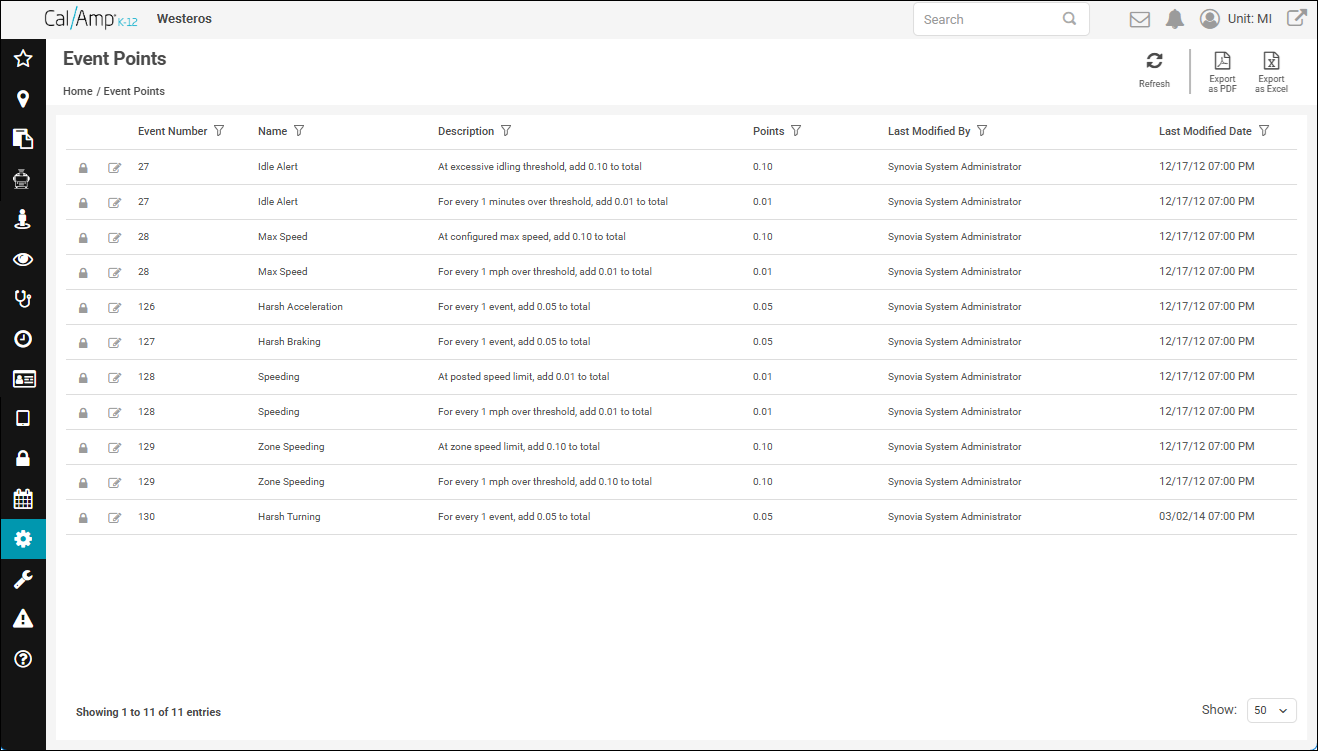
Here's a detailed explanation of what triggers these events:
- Idle Alert: If the driver is idling for a certain number of minutes, the point value set in the Points column will be subtracted from their score. The minute restriction, called the idling threshold, can be set by you on the Add/Edit Vehicle Type screen's Events tab in the Idling per Season area. You choose the threshold based on the type of vehicle, such as bus or truck; this is by default a value of five minutes. (See Adding a Vehicle Type/Changing a Vehicle Type's Properties for details.)
Note: The idling threshold has different settings for Spring/Summer/Fall and Winter. This is because some customers set a higher number of allowed idling minutes in winter to allot time for the vehicle to warm up. - Idle Alert: After the initial Idle Alert trigger described above, if the driver continues idling, their score goes lower and lower. Each minute of idling over the threshold subtracts the point value in the Points column to the right of the second listing of Idle Alert in the grid. For example, if your idling threshold is five minutes and you have these Idle Alert values . . .
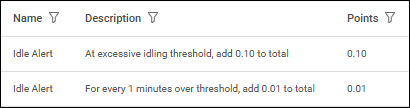
. . . the driver would lose .10 from their score of 100 when they first idled for five minutes, pulling their score down to 99.9. If they continued idling for four more minutes, they would lose .04 more points (.01 times 4), so their score would then be at 99.86.
- Max Speed: The maximum speed threshold is set at 70 mph in the LMU script. If the driver exceeds that, the point value set in the Points column will be subtracted from their score.
- Max Speed: After the initial Max Speed points deduction described in the previous bullet, the driver's score goes lower and lower for each miles-per-hour value OVER that they go. So given these Max Speed settings . . .
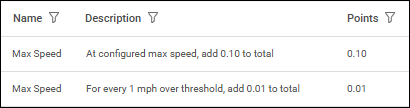
. . . the driver would lose .10 from their score of 100 when they hit a speed of 70 mph, lowering their score to 99.9. If their speed actually reached 79 mph, .09 (.01 times 9) more would be subtracted, leaving their score at 99.81.
- Harsh Acceleration: If the driver accelerates dangerously fast (at a rate of 250 cm/s/s for 1.5 seconds), this event is triggered. The point value in the Points column will be subtracted from their score each and every time this occurs.
- Harsh Braking: If the driver hits the brake too hard (at a rate of 300 cm/s/s for 1.5 seconds), this event is triggered. The point value in the Points column will be subtracted from their score every time they do so.
- Speeding: There is a Posted Speed Threshold setting that can give your drivers some leeway before they trigger a Speeding event. (CalAmp Support can change this for you.) If you have this set to 10 mph, for example, the driver would need to go 65 mph in an area with a posted speed limit (PSL) of 55 mph to have the point value in the Points column subtracted from their score.
- Speeding: After the initial Speeding points deduction described in the previous bullet, the driver's score goes lower and lower for each miles-per-hour value OVER that they go. So given a posted speed threshold of 10 mph and these Speeding settings . . .
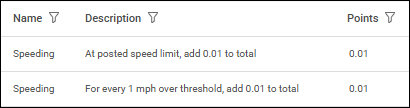
. . . the driver would lose .01 from their score of 100 when they hit a speed of 65 mph in a PSL zone of 55 mph, lowering their score to 99.99. If their speed reached 71 mph, .06 (.01 times 6) more would be subtracted, leaving their score at 99.93.
- Zone Speeding: If your organization has set up zone speed rules and the driver exceeds the entered speed within the locations that belong to a rule, the point value set in the Points column will be subtracted from their score — that is, after they have also exceeded the Zone Speed Threshold setting, which gives your drivers some tolerance before they trigger the event. (CalAmp Support can change this setting for you.)
Note: Zone speed rules are special speeding rules you can create for designated locations in your area, such as a transportation complex in which drivers are not supposed to exceed 15 mph. See the articles in the Zone Speed Rules folder for details. - Zone Speeding: After the original deduction explained in the previous bullet, the driver's score will be lowered each 1 mph value over that. So given a zone speed rule with a maximum of 15 mph, a zone speed threshold of 10 mph, and these Zone Speeding settings . . .
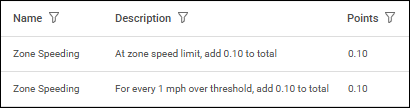
. . . the driver would lose .10 from their score of 100 when they hit a speed of 25 mph in one of the rule's locations, lowering their score to 99.9. If their speed reached 28 mph, .3 (.10 times 3) more would be subtracted, leaving their score at 99.6.
- Harsh Turning: If the driver takes a corner too quickly (at a rate of 400 cm/s/s for 2 seconds), this event is triggered. The point value in the Points column will be subtracted from their score every time they do this.