
If your drivers are using the CalAmp K-12 mobile app to clock in/out and to run Route Service (including running a vehicle's assigned route, entering a different route, searching for a route, adding runs when they are substituting for another bus for a single tier, switching runs, and ending service), you can limit which buses they can choose from by vehicle group.
Note: See Running a Route for details on how to use the app to choose a bus/route.
There is no CalAmp K-12 setting that enables this restriction; instead, you assign departments of drivers to the bus groups they are allowed to access. Departments are the divisions your employees are assigned to in Time and Attendance (TAA). (See An Introduction to Departments for more information.)
If you want your drivers to be able to search for (and find) any of the buses in your fleet in the CalAmp K-12 mobile app, you do not need to assign departments to groups. In fact, you should NOT do so. If you make no such assignment, by default, your drivers will have access to all your vehicles.
To assign departments to vehicle groups (and thus limit bus visibility by department), follow these steps:
Caution: Be aware that after you assign a single department to a group, vehicle visibility will be limited for all your drivers!
- Click
 >> Groups.
The Groups screen will appear.
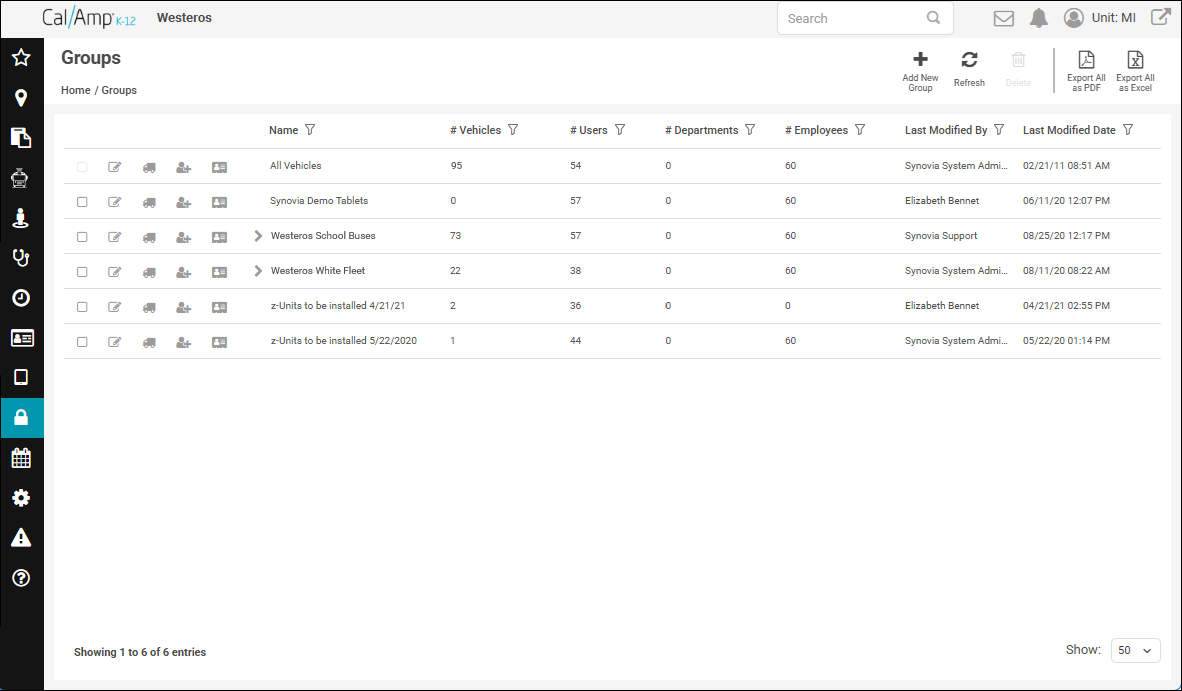
- Locate the row of the first vehicle group you want to assign a department to. (You can filter the Name column if necessary to find it, as shown in Sorting and Filtering Column Data.)
- Click
 to the left of the group name.
Note: If the group is a child group, to access it in the grid, you may need to first expand the parent group by clicking .
.
The Assign Departments for Group screen will appear.
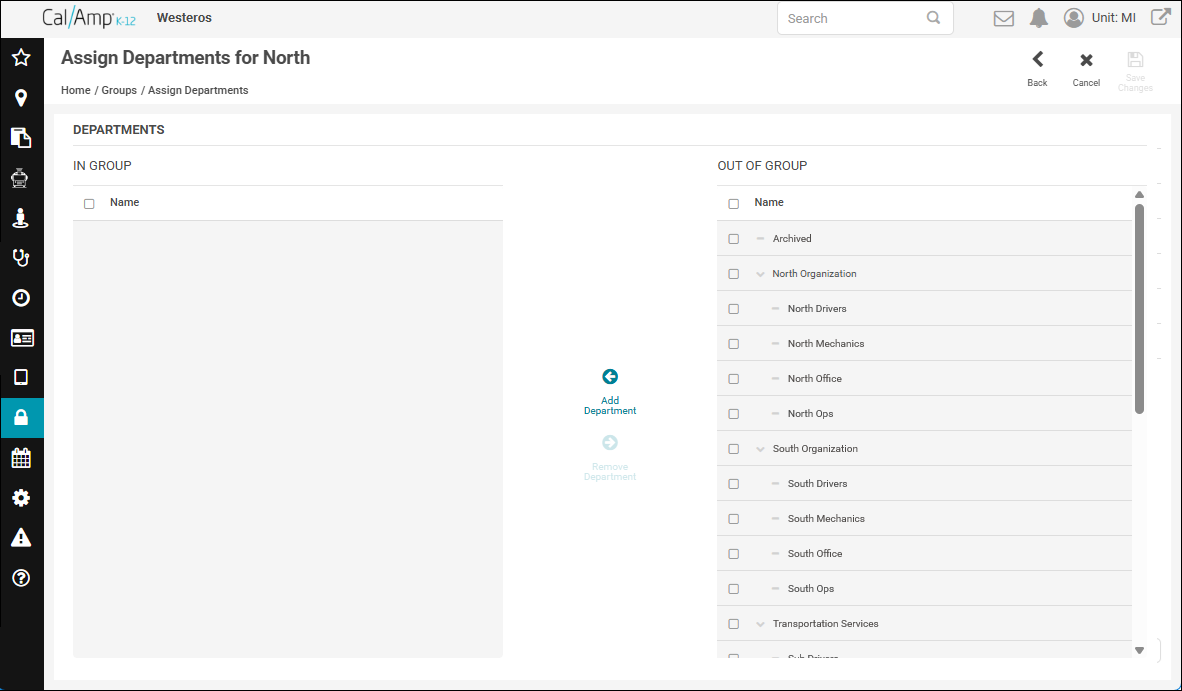
- In the Out of Group grid on the right, select the check boxes of the departments to assign to the group (that is, select the departments with the drivers and other employees you want to be able to access the vehicles in the group).
- Click
 .
.
The departments you selected will appear in the In Group list.
Note: If you need to remove departments you added, select their check boxes in the In Group grid and click .
. - Click
 at the top right of the screen.
You'll be returned to the Groups screen, and the number of departments you added to the group will be displayed in the # Departments column.
In addition, this will appear at the top of the screen:

This is a warning that because you assigned a department to a group, now your drivers will only be able to view buses in the CalAmp K-12 mobile app in the groups their departments are assigned to.
- Repeat steps 2 through 6 for all your vehicle groups.